Bios Password

  • Subscribe to our RSS feed.
  • Twitter
  • StumbleUpon
  • Reddit
  • Facebook
  • Digg
Showing posts with label XP. Show all posts

Saturday, September 14, 2013

What an MS Update Cycle This Month + others as well

Posted on 1:56 PM by Unknown

n0fusp3j.4gt

Is it just me? Or has this been a super-challenging MS Update cycle this time ‘round?

At home on our Windows 7/8 systems I must have had scan for updates, install updates, reboot, re-scan for updates, install more updates, reboot, re-scan for updates, install final round of updates a few more times than I can previously recall.

Lots and lots of updates (though that may be partially my fault for leaving Office 2007 on when I installed Office 2010).  I do that for trouble-shooting support as not all my peeps are are on the same version of Office that I would like to be on.

And at work on our XP systems, for some reason we got bit with the MS bug where we successfully install KB2760411 and KB2760588 but after reboot, Windows Update says they still need to be installed! Wow.

Here is more linkage than  you need regarding Microsoft and third-party app updating this month.

First Up: Microsoft Patching Information

Microsoft fixes bad patch detection - ZDNet Zero Day blog

Why all the errors in Microsoft updates lately? - ZDNet Zero Day blog

Update for Outlook 2013 breaks folder pane - ZDNet Zero Day blog

Microsoft botches still more patches in latest Automatic Update - Microsoft windows - InfoWorld

Outlook 2013 Folder Pane Disappears After Installing September 2013 Public Update - Office Sustained Engineering - TechNet Blogs

I’ve actually been holding off running my monthly WSUS Offline Update build until word comes out that these have been resolved.

Microsoft Patch Tuesday, September 2013 - SpiderLabs Anterior - Amusing and helpful patch summary

Lovely tokens and the September 2013 security updates - MSRC blog - details with pretty graphs

Assessing risk for the September 2013 security update - Security Research & Defense blog

Microsoft September 2013 Black Tuesday Overview - ISC Diary post

Next in Line: Adobe (Flash, Shockwave, Air)

Adobe September 2013 Black Tuesday Overview - ISC Diary post

Update Flash, Shockwave ASAP! Adobe also patches Acrobat and Reader - ZDNet Zero Day blog

Adobe, Microsoft Push Critical Security Fixes - Krebs on Security

Chrome Releases: Flash Player Update - Chrome Releases blog

On the Tail End: Oracle’s Java

It's about time: Java update includes tool for blocking drive-by exploits - The Register

Oracle Updates Java - Threatpost

Oracle finally adds whitelisting capabilities to Java - Computerworld

Security of Java takes a dangerous turn for the worse, experts say - Ars Technica

New features aim to shore up Java’s flagging security - Ars Technica

Go Get ‘Em Cowboy!

Hopefully your system is already set to download and process your Microsoft Updates. If not, stop, drop, and roll and get them on now manually if you must.

Adobe Flash may do an auto-updating or not, depending on your installation and settings.  I've not seen Air or Shockwave self-update ever.

Java might offer the update to you…or not.

If in doubt, you should be able to find direct downloads here.

  • Adobe Flash Player Distribution - Adobe
  • Shockwave Player Distribution Downloads - Adobe
  • Archived Adobe AIR SDK version - Adobe
  • Java Downloads for All Operating Systems - Oracle

Finally, if you have any doubt at all regarding your update level for these particular applications try one of these options; or even better, run both.

  • Qualys BrowserCheck - be sure to hit this link in all browsers that you use on your system!
  • The Secunia Software Inspector - Online Software Inspector (OSI) - they have a PSI installable version as well worth checking out.

They are really nice and pretty and are often overlooked…like the proverbial girl next door.

However they will hold your hand just as warmly and the kisses are just as sweet!

Stay patched, my friends.

Cheers!

--Claus Valca
Read More
Posted in Link Fest, Microsoft, security, troubleshooting, Windows 7, Windows 8, XP | No comments

Sunday, August 11, 2013

Some Notes for a Certain Project

Posted on 6:21 PM by Unknown

Just some scratch notes for a special project I am working on.

Nothing of interest for most other folks.

Remote Desktop and Automatic Login - Microsoft Visual Studio Forum

try using this
   mstsc /admin /v:ComputerName

or these
   mstsc /console /v:ComputerName

Be sure to “Log Off” rather than click the “X” to leave the session running if you aren’t coming back. Kinda like your mom telling you to shut the door behind you on the way out of the house when you were a kid. Heard it all the time…

Generally it seems you cannot use Microsoft’s Remote Desktop Connection service to establish an interactive remote control session with the logged in/active user’s desktop (session 0 ?)  unless you do it with the appropriate above arguments. However doing so may make a mess of things depending on how you exit…at least this appears to be my current understanding.

  • Use command line parameters with Remote Desktop Connection - Microsoft Windows.
  • Access Remote Desktop Via Commandline - TechNet Articles - TechNet Wiki
  • Mstsc - Microsoft TechNet - Windows Server
  • MSTSC - RDP / Terminal Server Connection - SS64.com

Just because you can doesn’t mean you should, and if you don’t log off properly…like I said you can make a mess for others coming behind you. If you find just such a mess, these tips might help clean things up.

  • How to Remotely Terminate and Disconnect Remote Desktop (Terminal Services) Connections or Sessions -My Digital Life
  • How to logoff remote desktop sessions via command line tools? - ..:::: Anand ::::..
  • Kill a remote user session remotely - Kode’s thoughts

In the end, RDC/RDP might be great or it might be messy.

If you are fortunate to be able to run UltraVNC services on some of your systems, you have some more options…especially if you are making a “headless” server box on a desktop OS platform. I’m personally more of a TightVNC guy myself but hey, close enough.

One of the problems might be that you want it to be a secure (AD/Domain) authenticated connection, but you don’t want someone to have to click “Allow/Disallow” on the headless system to approve that connection.

Fortunately there are options!

  • Can you disable the "Accept - Reject" window? - UltraVNC Forum - Yes, yes you can..
  • Install - UltraVNC
  • UltraVnc Configuration - UltraVNC
  • First Server Run - UltraVNC
  • Rolling out UltraVNC - pre configure VNC Password - UltraVNC Forum
  • ultravnc.ini - UltraVNC

And then…

  • Deploying UltraVNC within an Active Directory environment using Group Policy - Virtually Impossible
  • How do I setup MS Logon I or II? - UltraVNC Forum

User Redge wrote:

configure and set MS Logon I or II required only at VNC server.
a) following the doc...
http://www.uvnc.com/features/authentication.html
b) no if the UltraVNC setup was followed and exactly.
http://www.uvnc.com/install/installation.html
c) MS Logon I = Require MS Logon
http://www.uvnc.com/features/authentica ... l#mslogon1
d) MS Logon II = New MS Logon
http://www.uvnc.com/features/authentica ... l#mslogon2
Should set and required only at vnc server.
Important:
do not set vnc server as New MS Logon II on XP Home, won't work at all.

MSLogon can work, require turn OFF simple file sharing
windows XP

Open an Explorer window>Tools>Folder Options>View>The bottom check box

Headless systems are a pain…even if a modern BIOS can support booting without keyboard/mouse attached, and even if you can admin-pw lock the BIOS settings to prevent the USB ports from being active and used. Your system still may not boot if the NTLDR doesn’t see a proper video driver.

Headless System (Windows Embedded Standard 2009)  - Microsoft Developer Network post

  • Creating headless systems - Windows Embedded Blog

In Windows Embedded Standard 2009 the support for headless devices starts with the availability of null-drivers for the standard MMI devices. Of course, the BIOS needs to support this kind of configuration, as well, but this should not be a problem on recent systems. The generic keyboard and mouse drivers in Standard are still present as well, when no hardware is connected, but the null driver for the VGA adapter needs to be added to the configuration. This requires the following components:

VGA Save could be left out, if there really is no VGA compatible chip on the board. This will create a dependency error, which in this case can be disregarded. Nevertheless, the benefit of having VGA Save in the image is that any time a graphics adapter card is plugged into the system VGA Save gets loaded instead of the Headless VGA driver. This enables screen output e.g. for field personnel troubleshooting the device. The VGA Boot Driver is required by NTLDR at boot time.

  • Making the Server Appliance Headless - Microsoft Developer Network post
  • Headless VGA Driver - Microsoft Developer Network post
  • Headless Device Video Driver Processing - Microsoft Developer Network post
  • Adding Support for a Headless System to your Configuration ... - Microsoft Developer Network post
  • Headless VGA driver - Setting display resolution - Windows XP ... - RealGeek

One last element,

The BIOS should be configured to “re-spawn” like a good digital soldier in the event that the power is lost (even a UPS dies if power is off too long) or if someone hits the Power-off button perchance.

Likewise, if the Windows system is NOT on an AD Domain, and logging into a local workstation/workgroup account profile, then you lock it down pretty well (to the bare minimums to function, and enable the auto-login to the set profile: Tip: Auto-Login Your Windows 7 User Account | Cool Stuff | Channel 9. Pretty easy stuff for the auto-login.

The challenge comes up if you want to add it to the AD Domain and use a domain-based account for security/auditing purposes.

There are a number of ways to do this, each with their nuances. Some work better than others. Some are more secure than others. Consider the risk carefully before choosing grasshopper!

[SOLVED] Windows 7 - Auto Logon With Domain Computer - Mockbox.net post.  Easy enough with this registry-based solution BUT the user account and password are stored in the registry in clear-text.  You can roll your own .REG files for deployment with this method. However this could be a big security risk!

WindowsAutoLogin - freeware - IntelliAdmin. One nice feature of this application is that you can also control the number of times it allows an auto-login to occur and then after that “X” number of logins specified, it becomes disabled. That could be handy for some unattended (but brief) service events that require multiple reboots.

Autologon - Microsoft Sysinternals - Much better and easy enough to use. Per this post Safely setting autologon for Windows from the “Confessions of a Microsoft Consultant” TechNet Blog, we learn that AutoLogin saves the account/password string in the registry as a LSA secret.  That’s better than storing it in the Registry in plain-text, but it still is “easy enough” to penetrate and capture:

  • LSASecretsDump - Dump LSA secrets from the Registry - NirSoft utility
  • Use PowerShell to Decrypt LSA Secrets from the Registry - Hey, Scripting Guy! Blog - Why not since we are trying to learn PowerShell here too!
  • Dump Windows password hashes efficiently - Part 1 - Bernardo Damele A.G. weblog
  • Dump Windows password hashes efficiently - Part 2 - Bernardo Damele A.G. weblog
  • Dump Windows password hashes efficiently - Part 3 - Bernardo Damele A.G. weblog - LSA Secrets info is here.
  • Dump Windows password hashes efficiently - Part 4 - Bernardo Damele A.G. weblog
  • Dump Windows password hashes efficiently - Part 5 - Bernardo Damele A.G. weblog
  • Late night thoughts on security: LSA Secrets - ins3cure blog “Late night thoughts on security”
  • LSA Secrets - WindowsNetworking.com
  • Microsoft Windows Security Fundamentals: For Windows 2003 SP1 and R2 - Page 41 - Google Books Result

Autologon - commercial product from LogonExpert . I haven’t tried this product but it says it stores the logon information encrypted in AES 256, interacting directly with the WinLogon service to ensure nothing can grab the data. It has some really, really neat features.  The author has an overview of Free Solutions like what I have outlined above, as well as a Learn More about the product. There is an active download link from the page but I’m not sure if it is a limited-trial version or what. This may be a product that can provide both the “setup” features to enable AD-based auto-login and the security-needed for implementation. I’m really intrigued by this particular product.

Use this information wisely!

--Claus Valca

Read More
Posted in Active Directory, hacks, Microsoft, PowerShell, Remote Support, Scripting, security, tutorials, utilities, Windows 7, Windows 8, XP | No comments

Sunday, July 28, 2013

Personal Whole Disk Encryption

Posted on 12:59 PM by Unknown

So about two or three weeks ago I decided to bite the bullet and install a whole-disk-encryption solution to my personal laptop.

We use whole disk encryption (WDE) at work on all our systems for security and data-loss prevention so the whole concept is well covered here and I’ve done a number of posts on PGP WDE in particular, when combined with WinPE solutions.

But PGP is a commercial solution, and like some other commercial WDE products, is pretty costly and not a practical solution for most home users.

The whole concept of whole disk encryption is that even if someone physically steals your computer/laptop/portable-drive, they cannot access the data in a readable format without the use of an encryption key. In many ways, I think this is one of the very last bastions of standard computing security practice that hasn’t made it down to the average consumer level…and sadly…many companies and small businesses.  I always shudder when I see computers in small mom-and-pop businesses sitting out in the open near windows and wonder if their customer data is really safe at rest on them.

Anyway, it was time to lock-down the Valca laptops.

There were a small number of free/$$ consumer products out there for whole disk encryption I could have gone with. The two major factors I was particularly concerned with were 1) would system/disk performance be negatively impacted and 2) would recovery options to off-line mount the encrypted disk be available for me to use under a WinPE platform?

Advances in standard desktop hardware performance pretty much rendered the first one not a concern, and I have been using the portable version of TrueCrypt off USB drives and in WinPE for quite a while.

In the end I went with TrueCrypt and haven’t been disappointed.

The whole process is very easy to go through and I’ve seen absolutely no performance issues. In fact, I did all my recent HD video editing exercise with nary a performance blip shortly after my system was running the TrueCrypt whole disk encryption.

  • TrueCrypt - System Encryption
  • TrueCrypt - FAQ (answers to frequently asked questions)
  • Step-by-step guide to installing TrueCrypt and encrypting Windows XP system partition - Security Beacon

You might want to consider some of the points that Michael Pietroforte raised last week over at 4SysOps

  • Is TrueCrypt trustworthy? - 4sysops. I think he does make some valid points, but regardless, my primary concern is data loss prevention from robbery/burglary/my-own-stupidity and not from possible back-door exploits from shadowy gobernment data-collection operations run against the citizenry. Anyway, I thought Michael provided a great and often unconsidered perspective.

Alternative whole disk encryption solutions worth considering for home users

CE-Infosys - Free CompuSec PC Security Suite - I first stumbled across this German based software solution back when I was seeing how WDE might protect against KON-BOOT. It is completely free for both personal and professional use.

DiskCryptor - Open Source disk partition encryption program. I am not as familiar with this program but it has been kicking around now for a very long time. In addition it also supports Windows LiveCD integration.

Microsoft BitLocker/TPM - Note you need to be running Windows 7 Enterprise or Ultimate (or other Vista/Win 8 supported editions). Windows 7/8 Home editions don’t support it. A system board with TPM chip is not required, but recommended.

  • Help protect your files using BitLocker Drive Encryption - Windows.
  • BitLocker Drive Encryption Overview - Microsoft TechNet
  • What is BitLocker? What does it do? What does it not do? - US SMB&D TS2 Team Blog

For commercial products, this article may be helpful:

Buyer's Guide to Full Disk Encryption - eSecurity Planet

Cheers and stay secure,

Claus Valca

Read More
Posted in boot-cd's, Microsoft, security, Windows 7, Windows 8, XP | No comments

Sunday, July 14, 2013

File under “That’s one way to do it.”

Posted on 4:44 PM by Unknown

A KACE solution is used to produce a multi-platform image of our systems.

I’m not exactly sure how they make the master editions. The Home Office works behind closed doors once every few months when the moon cannot be seen at midnight. I guess it’s an “eye of newt, toe of toad” thing.

Anyway, we get the master USB stick, deploy it with much chanting and spinning to a local system, then pass some Latin command-line FU to the all powerful “Run" box. About 3-4 hours later a completely built KACE system (re)imaging stick spawn results. Then we have to repeat to build the next storm trooper clone.

It’s a time consuming process, and since I don’t have a physical multi-USB drive replication device, it can take up to a week (while multi-tasking) to update all the drives our team carry for system reimaging when a new refresh occurs.

So what I do is to to build a single updated one, then use Alex’s awesome USB Image Tool to capture a full image of the built stick. For the standard 16 GB stick we use, it doesn’t take too long to capture the “IMG” file back to the system HDD.

Once I have that, I just turn around and write that image back to each of the follow-on USB sticks. The process still takes up to an hour per stick to write back out, but that’s several hours faster than the standard process takes.

One alternative is OSForensics - ImageUSB. I like it and USB Image Tool as they allow you to take an image and write an image all with the same tool.  I also found Flash Drive Image Creator which just lets you take an image, and Win32 Disk Imager or USBWriter which then allow you to write that image to a USB drive. I haven’t used them unlike ImageUSB or USB Image Tool so YMMV.

All this is well and good until recently we got some 64 GB USB sticks to use.

The stock scripted process we follow from the master set of building files works fine with them…up to a point. See when done, it results in a 16 GB formatted partition. The remaining volume space is left unallocated in the process.

As I understand it (but haven’t verified myself) the process the KACE tool uses to create each of the sticks using the long-process uses UFDPREP.EXE to do the target USB drive’s formatting and conditioning to make it bootable to the KACE PE (just a custom WinPE) environment from which the image deployment scripts run out of.

It has been said (again I haven’t been able to find documentation to support) that UFDPREP only supports setting the formatting size for the flash drive up to 16 GB.  As I haven’t tested it independently, it might be that the script that the UFDPREP runs for in the drive building process is set somewhere to just use a 16 GB size. Changing its “/size=n” argument value to /size=65536 might work. Maybe.

(Side note: yes I know there are lots of ways and tons of tools to accomplish the formatting and boot-support prepping of a flash drive to almost whatever upper size you want limited only by the physical memory capacity of the device. The challenge here is that the official tool/process automates use of UFDPREP at the very onset of the scripted build process to the target device. So a maximum 16 GB formatted partition is what you get on the output if you want to also get the built image deployment tools and files with it.)

Anyway, I didn’t have the spare time to look into this too deeply. I needed a solution now.

So what I did was take my previously captured IMG file of a 16 GB built USB imaging stick and used “USB Image Tool” to restore it to one of the 64 GB sticks.

It went on fine and quick and resulted (as expected) in a fully functional USB stick for imaging purposes that had a 16 GB volume (just like the original it was captured from) with the remainder unallocated space. That would work “as is” for image deployments but we can’t let that unallocated space go to waste can we?

So I then booted a lab system with a Parted Magic “LiveCD”.

I attached the 64 GB stick and used the “Partition Editor” utility to first locate the device (I think it was listed as “/dev/sdb”), then went though the process to resize the 16 GB partition to take in the remaining unallocated space. I ran the operation and after a warning that it might screw up the data it completed with no fuss. See a visual walkthrough on the process concept below.

  • Using Parted Magic to resize a partition - Draalin - Basically it is just like this but you are looking for the USB device not a fixed internal disk. Other than that, it’s the same thing.

When the properties for the updated device were checked on a Windows system, the full 64 GB size available on the stick partition was now showing!  Further testing in image deployments found that no corruption to the files/data occurred. It worked great.

I understand that if instead of XP we were running Windows 7 (or Vista) -- which we are not -- then I could have accomplished the same thing natively with the Disk Management tool. Maybe that day will come soon.

I found using Parted Magic a breeze. It was super fast and has been dead-on reliable all the years I have used it to clean up and fiddle with drive partitions.

However there are some other free partition management software tools that run natively in Windows. Check the licensing requirements to make sure they are not “personal use only” and respect accordingly. Some of the free versions have stripped down feature from the “pro” paid version the same company offers.

I keep one or two of these on my USB utility stick as a “just in case” if either DISKPART or Parted Magic fail me. But they really aren’t the butter for my bread.

That said, they look like they could do the same thing that Parted magic is delivering if Linux isn’t your thing.

  • Best Free Partition Management Software - Gizmo’s Freeware - List of multiple free GUI-based partition management applications.
  • MiniTool Free Partition Manager - this tool seems to get pretty positive comments in various net forums.
  • EaseUS Partition Master Free Edition - EaseUS continues to make inroads to the partition software area with their great Windows tools.
  • Paragon Partition Manager Free Edition - Another nice looking and easy to navigate partitioning tool.

Like I said, file this under “that’s one way to do it” for using a USB IMG file created from a smaller sized partition on a larger sized USB flash drive, then restoring the additional unallocated space.

If any GSD readers have any additional ways to accomplish the same thing via Windows Command-Line Fu or a small GUI utility I’d love to hear your suggestions; especially if the utilities are freeware/open-source or command-line only and especially if they would work in XP.

Also, if anyone can find documentation on any formatting size limitations that UFDPREP.EXE carries, I’d love to see the linkage. My Google search skills are not too shabby but I haven’t had luck with the right key search terms just yet. I’d like to know formatting limits of the tool before I tear into the actual process to see if our method is passing it a hard-coded \size=16384 or not.

Cheers.

--Claus V.

PS: Misc links I found in the process of searching for info on UFDPREP.EXE that might be interesting to someone:

WinPE Bootable USB - Creating from XP - The CD Forum - Walkthrough on where to get the binary file (from original source) and how to extract it (note it involves Microsoft’s Windows Embedded feature pack).

A Deep Dive into USB Boot - msdn - How UFDPREP actually does it’s magic.

Read More
Posted in hacks, Linux, Microsoft, utilities, Win PE, XP | No comments

Sunday, June 30, 2013

Microsoft’s EMET v 4.0 Released … in case you missed it

Posted on 3:01 PM by Unknown

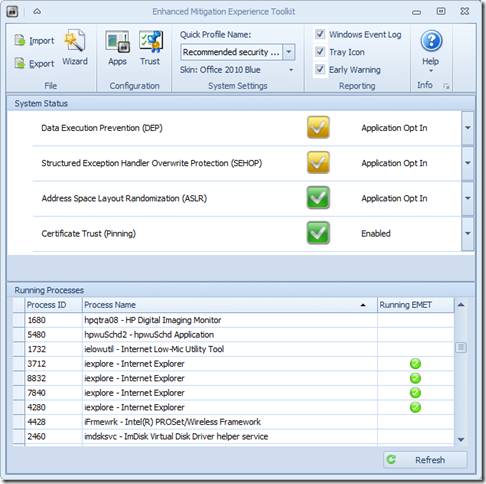
Microsoft’s Enhanced Mitigation Experience Toolkit 4.0 - EMET - just got released about two weeks ago.

It really hasn’t made that big a splash in the security news pond; maybe getting lost in all the waves from coverage on our domestic network digital data gathering, leaks in the SS Minnow, and that whole Facebook Shadow Profile data collection fiasco.

Oh, then there is that whole breaking story in the food world that has everyone shocked and a-twitter--How Cronuts Are Driving New York City Crazy.

So it’s not surprising that news of the release of a Windows-specific security tool to prevent advanced malware attacks got little notice.

So here you go.  Little rock toss into a big pond.

a0n12tap.xsg

I’ve got it running on all our home systems as well as all my Windows virtual machines. I’ve seen no performance issues at all and it is super-quiet; no chatter at all. Accordingly, I would recommend it to all my friends/family-members, especially those who insist on using Internet Explorer and do a lot of work in MS Office applications and documents. It is not a solution to replace any existing anti-virus/anti-malware security software you have, but rather it works to supplement and harden it.  I’m running it aside Microsoft Security Essentials (Win 7 systems), Windows Defender (Win 8 systems), and Bitdefender Antivirus Free (Win 8 systems). It works great.

  • Nuclear Scientists, Pandas and EMET Keeping Me Honest - SANS ISC Diary - great post from Johannes Ullrich detailing just how deployment and use of EMET (v3.5) could have prevented a recent “watering-hole” attack. It’s a great introduction on how the EMET software works. Version 4.0 is better.
  • EMET 4.0 is now available for download - SANS ISC Diary notice/followup.
  • EMET 4.0 now available for download - Microsoft Security Research & Defense blog. Great overview of the tool and all the new features and capabilities. Read this next before considering deployment
  • Enhanced Mitigation Experience Toolkit 4.0 - Official Microsoft Download Center source. It runs on everything from XP SP3 to Windows 8 platforms, as well as all related Server OS’s as well.
  • Enhanced Mitigation Experience Toolkit 4.0 - bink.nu - quick recap summary scraped from the product details of the official download site.
  • Microsoft’s EMET 4 adds even more malware-blocking power - Betanews overview of the tool.
  • Microsoft releases Enhanced Mitigation Experience Toolkit 4.0 - Help Net Security announcement of the tool.
  • Enhanced Mitigation Experience Toolkit 4.0 final is out - Ghacks.net - Nice review and overview of the EMET 4.0 features.

Not impressed enough yet to download?

Well, did I mention it has “skins” so you can change the theme to some pretty snazzy color schemes?

Seriously, if you spend any time on the Web (particularly in IE) and run a Windows system, then you really should consider deployment of this tool. Just take the default configuration settings to get started, then you can tweak away and add additional protection coverage after you read the manual.

Cheers!

Claus Valca.

Read More
Posted in anti-virus software, browsers, Internet Explorer, malware tools, Microsoft, networking, security, viruses, Windows 7, Windows 8, XP | No comments

Sunday, October 28, 2012

For-Sec & Utility Jumble Linkfest

Posted on 6:52 PM by Unknown

Wordle_2012-10-28_10-49-54

The short weekend is done. The “Sandy Watch” is on for what could be -- for our northeastern friends -- a storm event to be remembered for many years to come. So comes a pile of security/forensic and utility-minded links spill out below for the curious and information hungry.

Forensics and Security

Girl, Unallocated: Be Very Quiet... I'm Tracking Emails Through Headers - Girl, Unallocated Blog. The Girl has a great post looking at email headers and their bits and perils. One gem is a report (PDF) from Stroz Friedberg and a particular focus on email headers. The report as a whole is a great read and again provides a lesson in technical report writing and presentation as well as some forensics pushback on anti-forensics techniques. At 102 pages, it isn’t a brief, but well worth the time to download and study.

The Girl’s post reminded me of another great publicly-available report that addressed emails in a forensic investigation.  In my GSD post Interesting Malware in Email Attempt - URL Scanner Links, I wrote the following bits at the end:

A recent Digital Forensics Case Leads post has mention of a super-fantastic investigation/forensic report involving anonymous emails. This is must-read material, not just in terms of the investigative methodology but also the way the report was composed and presented. Very clearly done!  I’m keeping a saved copy of the report for future reference; both technically and as a report template. From the post via the link above:

“University of Illinois recently released a detailed investigation report (PDF) regarding anonymous emails allegedly sent by its Chief of Staff to the University's Senates Conference. The report is an interesting read, and also serves as a potentially useful model for those looking for report samples and templates.”

How a Google Headhunter's E-Mail Unraveled a Massive Net Security Hole - Threat Level @ Wired.com.  I almost overlooked Kim Zetter’s post on how Mathematician Zach Harris -- as an exercise -- discovered a flaw in some providers user of a weak DKIM key to sign emails originating from them. Fascinating and short read.

DEFT 7.2 and DEFT english manual, ready for download! DEFT Linux - Computer Forensics live cd . New DEFT version out. Last one in x32 bits. Future versions will be strictly x64 flavored.

Xplico – Xplico 1.0.1 - Xplico new version release just dropped. From the brief post:

ChangeLog:

  • nDPI integration
  • performace improved
  • FTP dissector improved
  • Added the prism dissector
  • CLI execution bug fixed
  • PCAP-over-IP SSL encryption
  • IRC dissector improved
  • File reconstruction from Fragmented Payloads improved
  • FaceBook Chat updated
  • FaceBook Message (partial)
  • HTTP without initial packets (packets lost)
  • RTP dissector improved
  • PCAP2WAV, RTP2WAV interface added

And don’t forget! Now you can update/get via apt-get! for Ubuntu 11.04 and higher.  Sweet!

sudo bash -c 'echo "deb http://repo.xplico.org/ $(lsb_release -s -c) main" >> /etc/apt/sources.list'
sudo apt-key adv --keyserver keyserver.ubuntu.com --recv-keys 791C25CE
sudo apt-get update
sudo apt-get install xplico

LastActivityView - Nirsoft brand new utility! - Use this new tool to view the latest computer activity in Windows operating system. Nir Softer has some more details on his NirBlog: New utility that shows general computer activity. Could be useful for incident response and analysis and other “quick peeks” for key system activity indicators to narrow down the search.

FileAlyzer Portable 2.0.5.57 (detailed file analyzer) Released -PortableApps.com

Hacking KeyLoggers - Open Security Research has a great post that not only identified a USB keylogging device, but takes it to the next level in hacking it to determine the impact of the device and when it might have been dropped. Clever stuff.

Attacking TrueCrypt - The H Security: News and Features. Another interesting post that almost slipped by me. Interesting by itself but also shows the benefit of using “cascaded algorithms” in TrueCrypt to thwart current attacks…for now.

Restoration of defocused and blurred images - Yuzhikov.com. This is super cool.  Vladimir Yuzhikov hasn’t just done a proof of concept for de-fuzzing blurred imaged (either out of focus or those blurred with a mathematical algorithm), no, he has actually released a free Windows app to demonstrate the possibilities. Besides images, text that is out of focus can be unblurred as well. This is very fascinating and could assist investigators facing images and other digital files with blurred faces or content. It’s not exactly easy or guaranteed to work, but it is very promising start and Vladimir notes he is continuing development and refinement. Read his work please and snag the download.

Google Drive opens backdoor to Google accounts - The H Security: News and Features . Quoting from the post, “The Windows and Mac OS X desktop clients for Google's Drive file storage and synchronisation service open a backdoor to users' Google accounts which could allow the curious to access a Drive user's email, contacts and calendar entries.”  read the post for more info. As usual it seems to be a convenience versus security trade-off again. Choose your cake wisely. I stick with using only the web interfaces and pass on the client versions of these cloud-based storages services…for now.

Virtualization

The TinyApps bloggist has been hard at work digging out great tips and techniques for importing the virtualized “Windows XP Mode” into popular virtualization software. As always, the posts are impeccable with lots of details and supporting source documentation for additional study and research.

  • Import Windows XP Mode into VMWare Player - TinyApps.org blog
  • Import Windows XP Mode into VirtualBox - TinyApps.org blog
  • Must-have tool for VirtualBox users - TinyApps.org blog.

Oracle VM VirtualBox - Version 4.2.4 just dropped…by the way. I almost missed it were it not for my RSS feed filters. See the changelog for more details.  And be sure to grab the 4.2.4 VM VirtualBox Extension Pack as well.

Miles’ posts reminded me of an earlier GSD summer post Virtual Solutions and his great post comment guiding me to getting MS’s IE VirtualPC images running in Virtual Box.

How to run Microsoft’s IE VPC images in VirtualBox
http://tumblr.jonthornton.com/post/11405634980/how-to-run-microsofts-ie-vpc-images-in-virtualbox

ievms - Automated installation of the Microsoft IE App Compat virtual machines
https://github.com/xdissent/ievms

Browser Plugin Update Time…Again.

Yes dear readers, it is “Jack and Jill” time again. Bother.

Adobe Shockwave got updated, as of this post, the newest (Windows) version of Adobe Shockwave is currently 11.6.8.638.

  • Adobe - Adobe Shockwave Player - direct download
  • Adobe - Security Bulletin: APSB12-23 - Security updates available for Adobe Shockwave Player - Adobe
  • Adobe patches 6 critical security flaws in Shockwave - ZDNet
  • Adobe fixes critical Shockwave vulnerabilities - The H Security: News and Features

Adobe Flash was updated as well. Newest (Windows) version is currently 11.4.402.287.

  • Adobe - Flash Player - version information
  • Adobe releases 25 critical Flash patches - The H Security: News and Features
  • Adobe - Security Bulletins: APSB12-22 - Security updates available for Adobe Flash Player - Adobe

Java also got a quick update to both build versions. Windows Java updates are available in 1.6.0_36 and 1.7.0_09.

  • Java SE 6 Update Release Notes - Oracle
  • Java SE 7 Update Release Notes - Oracle
  • Java SE Downloads - Direct download

Trying to figure out if all your browser plug-ins are current can be a super-pain for the inexperienced and geekless.

My go-to recommendation remains to pop over to Qualys BrowserCheck in each of your installed web-browsers, be it Chrome, Windows IE, or Firefox. Alas, Opera, Safari, and other browsers are not currently supported, however a check in one of the supported browsers may quite likely uncover a outdated plug in, patching it may fix the others in the process.  For a backup check, hope over next to The Secunia Online Software Inspector for a second opinion.

If you want a good all-in-one location to manually download your plugs, check out Browsers and Plugins Downloads over at FileHippo.com.

Utility and SysAdmin Finds of the Week

Defrag Tools: #13 - WinDbg - Defrag Tools @ Channel 9. New video on Sysinternals tool usage; specifically integrating Debugging Tools for Windows.

Case of the CertUtil Import Refusing The Correct Password - chentiangemalc. Great practicum post on troubleshooting a strange password error where the password was correct but not being taken.

SpeedyFox - Boost Firefox,Skype,Chrome,Thunderbird in a Single Click! - CRYSTALIDEA Software . It has been forever…like dinosaurs roaming the earth eras ago…since I last saw any post anywhere on speeding up a pokey Firefox browser by “optimizing” the JSON databases. This is a dead-simple process to improve launch-time for a well-used Firefox browser. It’s been months since I last optimized mine. When I went to run SpeedyFox, my favorite tool to do so, I wondered if there had been an updated release. My version was at least a year old.  Happily I found there was a newer version, and that it now supports optimizing Chrome-based browsers as well. It remains available as a free edition. Current version is 2.0.3 but while I was sleeping, the developers have been adding support for Skype, Chrome (including SRWare Iron and Pale Moon), Mozilla Thunderbird, and Firefox (including Epic Browser). There is a Mac version (Firefox only) also.

If you use Firefox/Chrome/Thunderbird, stop, drop and run right now!  Did I mention it supports custom paths to your browser profiles so you can optimize portable versions on your drive/disks? Sweet baby Jebus!

CR2 Converter - I shot a lot of photos for Lavie and her family last weekend with the Canon 5D Mark II.  Pops asked for copies and when I was getting ready to pass them off, I realized I had not changed the setting from “RAW” only to RAW+JPEG. So I had over 300 digital images in RAW .cr2 format that his computer cannot read and that are not really a practical format for him anyway to use. Sure, I could batch-convert them in Lightroom/Photoshop, but I really just needed to get them quickly on a CD for him.  I have more than a few RAW freeware tools for tweaking individual RAW file images but that was too time-consuming to use. Luckily, with just a bit of Google diving, I found the freeware Canon RAW Image Converter “CR2 Converter”.   It supports batch-conversion and did an acceptable job for this task. My i7 x64 8 GB RAM system chewed through converting the files in no-time.  To my eyes the resulting images were a bit lightly purple-tinted…not bad or unpleasant but definitely noticeable when compared to the RAW file. Nothing that some simple color correction can’t fix if really important. For Pops it wasn’t but YMMV.  I wouldn’t use it everyday for batch processing but for quick-n-dirty RAW .cr2 to JPEG/JPG/GIF/BMP/PNG/TIFF conversions it is a super time-saver. Tuck it away for when needed in a pinch.

Cheers and hopes and prayers for the very best across the north-east seaboard as Sandy rolls in.

--Claus V.

Read More
Posted in browsers, Firefox, forensics, Google, graphics, hurricanes, Internet Explorer, Link Fest, Microsoft, networking, NFAT, security, troubleshooting, utilities, video, Virtual PC, virtualization, Windows 7, XP, Xplico | No comments

Friday, October 19, 2012

Grandpa would not be impressed…

Posted on 10:46 AM by Unknown

My late maternal grandfather was an F.B.I. Special Agent back from the ‘40’s to late 1960’s.

So I was bemused when a gentleman from the church brought me his wife’s XP laptop that when booted displayed an “official” looking lock screen from the “FBI” (complete with FBI seal) saying computer violations were found and locked by the FBI unless the user paid them a fine via a legitimate “MoneyPak” service.

Really?

No.

It was just a run-of-the-mill Trojan drive-by infection crafted by scummy scammers.

  • New Internet Scam - Press release from the REAL Federal Bureau of Investigation at fbi.gov.
  • FBI Ransomware: Reveton seeks MoneyPak payment in the name of the law - ESET ThreatBlog
  • How to remove FBI Moneypak virus? -ThreatLevel
  • Remove the FBI MoneyPak Ransomware or the Reveton Trojan - BleepingComputer

It took the better part of a Monday night NFL football game to clean, but I was able to get things restored and back in service.

…and then updated all the third-party browser apps (Java, Flash, Shockwave, etc.) as well as the latest version of the installed AV/AM software.

Related: SOPA reincarnates to hold your computer hostage - ZDNet.

--Claus V.

Read More
Posted in troubleshooting, viruses, XP | No comments

Saturday, August 4, 2012

FreeCommander micro-tip

Posted on 7:40 PM by Unknown

I’m a SuperFan of the FreeCommander freeware file manager.

I have quite the collection of Windows file manager applications and each one has its own coolness factor.

But when it come down to just the daily file management operations, I reach for this one every single day.

The tabs, features, tools, and customizations just make it hands-down awesome.

Developer Marek Jasinski has been hard at work for some time on the next version, FreeCommander XE.

He offers frequently updated Preview Release versions in both installers and “Portable” versions.

I’ve actually been running a non-public “donor” build of FreeCommander XE for quite a while and it has been very stable and fast on my Windows 7 (x64) system.

So when I finally got around to putting a recent copy on an XP system, I was startled to get the following error dialog window when launched.

"The Procedure Entry point ConvertToGlobalHandle could not be located in the dynamic link library KERNEL32.dll".

Super-strange. Interestingly, I could close the error dialog and the application otherwise seemed to function fine. It just appeared at launch.

I did some Google work and eventually found the cause via a similar error reported in the ImgBurn (a optical-media burning/ripping software I also recommend and use):

Imgburn error, entry point not found - ImgBurn Support - ImgBurn Support Forum

The error comes from ImgBurn, but it's not really ImgBurn's fault.

I ran into a similar symptom running ImgBurn under WinXP 32-bit.  In my case, the missing dynalink error dialog box on ImgBurn startup was caused by a copy of the Win9x-specific SvrAPI.dll in the c:\Windows\system32\ directory.

SvrAPI.dll dynalinks to the Win9x Kernel32.dll's ConvertToGlobalHandle() API.  But the Kernel32.dll of NT-based Windows OSes, like WinXP and Win7, doesn't export ConvertToGlobalHandle().  So if you try to load the Win9x SvrAPI.dll on an NT-based Windows OS, you get a missing dynalink error dialog box.  Removing c:\Windows\system32\SvrAPI.dll, which is not used under NT-based Windows OSes, fixes the problem.

Under Win9x, SvrAPI.dll exports the subset of the Net...() APIs available on that platform.  Under NT-based Windows OSes, NetAPI32.dll exports a much fuller set of the Net...() APIs.  ImgBurn, correctly, attempts to explicitly load some OS-specific DLLs via LoadLibrary(), like SvrAPI.dll and NetAPI32.dll.

This issue is not really a bug in ImgBurn since SvrAPI.dll should typically not be installed on an NT-based Windows system.  However, ImgBurn could work around this issue by attempting to load NetAPI32.dll first and only attempting to load SvrAPI.dll after NetAPI32.dll fails to load.  It looks like the explicit loading of SvrAPI.dll was added in ImgBurn 2.5.6.0.  ImgBurn 2.5.5.0 does not attempt to explicitly load SvrAPI.dll, and so does not generate the missing dynalink error dialog box.

I went digging on my Windows XP system system32 folder and -- sure enough -- found the SvrAPI.dll file there.  I renamed mine “SvrAPI.dll.old” instead of deleting it.

Re-launched FreeCommander XE and no more error. Mkay.

That has been about three weeks ago and I can’t find any harm has been done with “disabling” the file like I did. No telling what application I had previously installed that put it there. YMMV.

I was going to post a followup bug note in the FreeCommander Forums about the issue, but found someone else had already ran into the same issue (note to self, check in the program forums first) and reported the behavior and presence of the SvrAPI.dll file; also linking back to the ImgBurn forum link I found.

FreeCommander Forum • View topic - Entry point ConvertToGlobalHandle not located

Hopefully this or the forum link will help others who encounter this weirdness.

FreeCommander and FreeCommander XE (still in beta).

Highly Valca recommended!

--Claus V.

Read More
Posted in troubleshooting, utilities, XP | No comments

Monday, May 28, 2012

Virtual Solutions

Posted on 1:53 PM by Unknown

Continuing in the troubleshooting theme today, here are a couple of solutions I worked out playing with some virtualization software and machines this weekend.

Tip # 1 - Microsoft Tester VHD images still available

When I moved to my “then new” laptop, I ended up discarding a lot of virtual machine images I had been keeping around to testing and lab-work. One of which was an XP tester build in Microsoft’s Windows Virtual PC.

While Virtual PC on XP had been pretty easy to use, the “embedded” operation of it in Windows 7 is a bit more of a headache. (Note: I wonder if Windows 8 will retain an “XP Mode” feature? Anybody know?). So I had dumped them when I started using Oracle VM VirtualBox.

Last week I needed to do some work in XP again and decided to grab one of Microsoft’s IE App Compat VHD’s over at the Microsoft Download Center.  I snagged the tiny (by comparison Windows_XP_IE6.exe) package. They also have some larger Vista/Win7 VHD packages also.

While these do time out/expire (they can be “re-armed” following the instructions on the download page above), they provide a quick and easy way to grab and run XP for testing purposes.

Tip # 2 - Converting other virtual disks to VMware format

(Alert: dead-end coming)

While I was able to get the XP VHD working just fine in Virtual PC on my Windows 8 system, I wondered if the performance would be better in VMware Player. It also has slick support for “Unity” which is a “XP Mode” feature that doesn’t require you to be using Windows 7 in Professional/Ultimate builds.

So I figured I would just convert the VHD file and convert it to the VMWare format and roll on.

First I tried StarWind Free V2V converter. Downloaded and installed OK with no fuss, however when I tried to launch the converted VMDK file in VMware, it bombed out.  That said, I’m still keeping it around as I suspect something else was going on and it wasn’t an issue with the software.

Next I read about WinImage which per a handy post from VMpros, can convert VHD to VMDK. However since it is trial-ware, I decided to skip that option.

Finally, I settled on the free VMware vCenter Converter. Download requires registration with VMware but it was painless and the application was a breeze to use. In no-time it converted my VHD file to VMDK format and I had it running in VMware Player. For a good walkthrough check out this AddictiveTips post Convert & Use Your Physical Machine In VMware, VirtualBox & Virtual PC.

Well…not really.  See as I found out (and should have remembered but it has been too long) the Microsoft IE Tester images are set up only for Virtual PC specific “hardware”. By that I mean while you can convert them to another virtualization platform, XP will then see that your “hardware” has changed and require re-activation and require you to put in a fresh product key from scratch to activate it.  I suppose a clever person could work around it and get it working in VMware, but that would seemingly violate the EULA agreement for these packages.

Like I said, this lead to a dead-end, but it was fruitful in finding the Microsoft IE Tester packages are still available for use and (for a bit longer) still offer XP as an option.  Also, I found the VMware vCenter Converter software to be wonderful to use and am sure I will rely on it more in the future.

Tip # 3 - Don’t Forget your old install media

After the dead-end above, I remembered I still had an old XP Home (SP1a) install disk and license I had bought when I built my first small-form-factor desktop. Since that time, all the newer systems we bought came pre-loaded with Vista/7 so eventually that SFF system (and the XP load) were wiped clean and while the SFF box patiently waits re-purposing to FreeNAS one day, the XP Home OS has not been used since.

So I used it to build/activate a fresh install directly in VMware Player and got it fully patched/updated and running smoothly for all my XP testing needs.

Tip # 4 - Getting ChromiumOS (Hexxeh’s Vanilla builds) running in VirtualBox

After all the fun I was having getting these virtual systems tweaked, on a whim I decided I wanted to check out Chromium OS.

I decided to take the easy way out and use a “Vanilla” build of the Chromium OS builds by Hexxeh. I downloaded the VirtualBox file, got it configured in VirtualBox and launched away.

Only while it ran fine, I couldn’t get though the first-launch setup landing page I because the “network” was unavailable and no networks were offered. I was using “NAT” setting but no dice.

I did some digging and found that there were a number of folks with Questions Tagged With network - CrOS QA in the forums.

Took a while but I finally figured out the trick (at least if you NAT for network connection on VirtualBox).

Go into the Network settings for your ChromiumOS virtual machine. if you NAT by default it should look like this.

dlewztqm.njx

Next click the “Advanced” triangle (as shown above) to expand it.

Change the adapter type to an appropriate "Intel PRO” interface. Your options may appear differently from the one I selected below.

lcndulra.heq

Save your settings and re-launch the virtual machine.

This time the network was available and I was able to complete the setup and running of Hexxeh’s ChromiumOS build with no issues.

I need to play more with it before posting my opinions but it worked just fine.

Tip # 5 - VirtualBox supports Windows 8 “natively” now.

In my recent Windows 8 GSD blog post I bemoaned being able to successfully install the VirtualBox additions into my Windows 8 Consumer Preview build in VirtualBox.

Thanks to the comments of a kind anonymous tipster, I realized many older “how-to” instructions on the process on the web recommended selecting “Windows 7” as the OS type during the creation process, then running the VirtualBox Additions in “Compatibility Mode” to install. The newer versions of VirtualBox now offer “Windows 8” as an OS type during the virtual machine setup process and if done so, you can just run the Additions “as-is” with no need to do so in Compatibility mode. They go on just fine.

1dojf5jn.fy0

Anyway…by the time I had already figured this out I had since followed an Install Windows 8 Consumer Preview on VMware Player that worked so seamlessly I don’t think I’ll use VirtualBox for Windows 8 testing at this time. YMMV.

Tip # 5.5 - VirtualBox 4.1.1.16 now out

On 2012-05-22 Oracle released a new version of VirtualBox: Changelog – Oracle VM VirtualBox

Get the Download – Oracle VM VirtualBox along with the matching VirtualBox 4.1.16 Oracle VM VirtualBox Extension Pack that is also on that page.

Tip # 6 - More Virtualization Tippage sites/blogs

By no means complete, these sites seem to have great tips on virtualization platforms.

  • Virtual PC Guy's Blog - Ben Armstrong’s MSDN Blog
  • Virtualization Resource Site: Articles & Tutorials - VirtualizationAdmin.com - Check the sidebar for great linkages.
  • VMPros - Lots of good community expert posts here!

Cheers.

--Claus V.

Read More
Posted in Link Fest, Microsoft, software, troubleshooting, tutorials, utilities, Virtual PC, virtualization, Windows 8, XP | No comments

Resolving a Logitech SetPoint Installation Headache

Posted on 11:56 AM by Unknown

Earlier this week I built a fresh virtual machine of Windows XP Home for use in long-term XP fiddling.

I wanted to use my Logitech Cordless Desktop LX 710 laser keyboard/mouse set with it; specifically the LX7 mouse which has handy left-wheel & right-wheel click support. I think these are called the “Tilt-wheel plus” feature. I set these to copy & paste functions and can really scream through work. It takes Logitech SetPoint software drivers to enable these extra click-button features fully.

0oiyz1a0.2vs

So I hopped over to the page above and then to the downloads link,stepped through the options, and came up to the XP SetPoint 6.32 download page for this particular model (which I suspect it is for most all SetPoint hardware…).

Downloaded the file (setpoint632_smart.exe) and proceeded with the install.

The first time I ran it, I got an error “SetPoint failed to install.  Please restart your computer and try again.  (223,224,225,221,222)”

M’kay.

Rinse/repeat. This time it went on “successfully.” However when I went to configure the click buttons, the options weren’t there.

Curiously, I now had the Logitech folder in my Program list, but the “Mouse and Keyboard” launch icon pointed to nowhere.

Tried a few more times and each time resulted in either the same error as before, or a “successful” install with no actual installation of the core SetPoint application into my Program Files folder.

Getting a bit frustrated, I checked out a few things.

First I chased the SetPoint software location via the application shortcut being created. It kept pointing to a non-existent “C:\Program Files\Logitech” folder. Hmm. For some reason it appears the folder wasn’t being made.

So I next ran Process Monitor and was able to trace the unpacking of the (setpoint632_smart.exe) location as it worked.  On 32-bit XP systems, it appears to unpack a primary temporary installation folder to “C:\Documents and Settings\userprofile\Local Settings\Temp\Logitech”

At first a folder “SetPointSI_1” is created, followed by a secondary “SetPointSI32_1” folder, then contents of which are pulled down from the web. Once the installation process is completed, the contents of these folders are removed.  I also found that during the installation process you can copy these folders/contents to another location to preserve them after the installation completes and the originals are removed.

Unfortunately, manually running these “recovered” installers didn’t result in getting SetPoint correctly installed on my XP system, nor did trying to manually install the drivers. I really needed the SetPoint application itself to install.

A long survey on Google found quite a lot of users on the web (not just XP users) who just could not get SetPoint to install on their systems using the intelligent/web-based SetPoint installer download; along with many very clever…but usually ineffective tips on getting it going.

Eventually I found this post in a Logitech forum: Unable to install Setpoint 6.32 on Windows 7 x64 - Logitech Forums.

“Meltech” recommended installing in a Clean Boot mode. I didn’t feel like trying that, however the poster also offered 32/64 bit download links.

Interestingly, these were not the setpoint632_smart.exe file, but links to the standard SetPoint installation packages.  I downloaded and used the 32-bit (setpoint632.exe) file.

It went on with no drama and voilà, this SetPoint installer created the missing C:\Program Files\Logitech” folder with all the contents. I was able to then set my mouse-wheel-tilt-clicky buttons just fine!

Repeating the process and carefully keeping an eye on it, this installer unpacks itself to “C:\Documents and Settings\userprofile\Local Settings\Temp\Logitech” and creates a “SetPoint_1” folder.

Comparing this folder against the “SetPointSI32_1” folder from the other installer finds a lot of similarities and differences. Bottom line is that the “full” installer brings a lot more files to the party than the web-based intelligent installer.

(Actually, there are LOT more folders and stuff (hopefully) created in both installation events. Use of Mirekusoft Install Monitor or another similar tool like Directory Monitor or Track Folder Changes will ferret them all out for you.)

One file to look for with great information is the installation log file found on XP at

C:\Documents and Settings\userprofile\Application Data\Logishrd\sp6_log\sp6_setup.log

Anyway…to sum up a short-blog post getting longer than intended…

If you are having issues with the Logitech intelligent/web-based “Smart installer package”, try the “full” version instead. Yes it is a larger download, but doesn’t seem to present any installation issues.

You can either look in the Logitech FTP site for the latest SetPoint installer file(s): Index of ftp://ftp.logitech.com/pub/techsupport/mouse/ 

(note: the files with a “j” in the name are Japanese versions.)

Or…you can carefully read the Logitech download page for your specific product (doh!) and get it directly from that page (example below).

01021uhl.vzb

Hopefully this post will help someone else who is struggling to get a “clean” install of Logitech SetPoint running on their Windows system; just give the “Full” version a try.

Cheers!

--Claus V.

Read More
Posted in hardware, troubleshooting, utilities, XP | No comments

Sunday, June 26, 2011

Anti-Malware Tools of Note

Posted on 9:28 PM by Unknown

As promised, here is a resource-dump of some anti-virus/anti-malware tools I either use for came across in my recently documented battles that I thought would be helpful for reference.

As with many things in life, having the right tool for the particular job at hand can save much time and aggravation.   Hopefully most of these will already be well known to the GSD faithful readers. But I also hope that maybe one or two of these may be new finds as well to go into your toolbox.

Obviously this isn’t a complete list.  However they nicely supplement those I’ve already recommended. Check the side-bar to the left for many more that have been previously shared here.

While I do sometimes favor a direct frontal attack against malware while the system is running “live”, I typically find it much more productive to first whack-away at the infected system “off-line” having booted the system first in a WinPE environment.  I prefer to use my own custom Sexy USB Boots tools on a write-protected USB stick.  There are lots of flavors of WinPE including WinFE and WinRE and each bring their own benefits/drawbacks to the fight.

One important lesson I’ve learned is that the more scratch-space you can spare on your WinPE build, the better your apps will run in the WinPE operating environment.  Check out this WinPE and DISM/PEimg to boost Scratch Space (Ram Disk) post to option things out.  If you want to carry the option to boot from several different “boot.wim” files with different scratch-space settings, or maybe WinPE, WinRE, and WinFE boot options all on the same stick check out this WinPE Multi-boot a Bootable USB Storage device post for some thoughts.

Of course there are lots of different options for building your WinPE as well.  You can go “old-school” and use the Microsoft WAIK, there is WinBuilder, or you can check out TinyApps cool find to build a WinPE without any of those extra bits.  AgniPulse sets out a great tool and method to in his Beginners Guide to Creating Custom Windows PE.

My own preferred first-strike team is to boot the system with WinPE then toss the free tool VIPRE Rescue at the system.  There are two things that I think really make this anti-malware tool exceptional.  First it is easy to use and very thorough. But secondly, it creates some incredible logs and quarantines the files.  Both the logs and quarantined files helps me understand what was going on with the infection and possibly what vector it used.  That might help me secure the fixed system and submit the files for additional analysis.

Once the system is running “live” again, I also like to toss Malwarebytes Anti-Malware Free at the system.  It is a pretty aggressive anti-malware scanner with lots of options.

I also like SurfRight’s Hitman Pro 3 and have found it seems to do an exceptional job addressing issues that are missed by many other tools I have used. The plus is that you can use their product to get unlimited free scanning + 30 day removal.

Norton Power Eraser is a very powerful tool to root-out deeply embedded malware from a system Read their page carefully first.  I’ve had good experience with it myself.

I also keep handy and request a third-scan opinion from the still fairly new Microsoft Safety Scanner.  Being a “standalone” tool of sorts, it can be run in the WinPE environment or on the “live” system.  The trick in WinPE is to make sure your WinPE build has a large scratch-space value.  Check out this 4sysops post Offline Antivirus – How to run Microsoft Safety Scanner on Windows PE 3.0 for more details.

I do understand that for some folks, the thought of making a custom-spun WinPE boot tool could be quite intimidating.  With that in mind, you will want to keep a copy of the Microsoft Standalone System Sweeper Beta handy.  Of course you will need an uninfected “host” system to create the tool. Download the “builder” utility in either x32 or x64 flavor depending on your hardware and choose a blank CD, DVD, or USB drive with at least 250 MB of space. Execute the tool and build-away.

Of course, you may want to do more with this plain-Jane WinPE build that it lets you.  And you can if you know the tricks our dear TinyApps bloggist posts in his Extending Microsoft Standalone System Sweeper tips.

Maybe all you want is just to download and burn an ISO file to CD and use it to try to disinfect a system without all those extra bells-and-whistles that I love so much in WinPE.

Well, many reputable security product vendors offer their own tools as well in that same line.

Calendar of Updates has a page that is kept pretty updated Free Anti-Virus Rescue boot CDs including direct links to Avira Rescue CD & BitDefender Rescue CD.

F-Secure keeps their own Rescue CD resource updated. They also offer some fantastic Easy Clean, Online Scanner, and Blacklight rootkit tool.

Likewise, Kaspersky has their own Rescue Disk 10 tool as well as an Online Scanner, an incredibilly extensive toolbox of free Virus-fighting utilities to address specialized malware threats, a tool to remove banner from desktop, unlock Windows.  Kaspersky also offers valuable documentation on common malware information, viruses and solutions, as well as Rogue security software response guidance.

Dr.Web CureIt!! is another LiveCD solution worth knowing.  See also their Sysadmin First aid kit page for some additional resources.

Not “free” for everyone but a good LiveCD resource for Norton product users, check out the Norton Bootable Recovery Tool.  As explained on the page, “You will need your product key or PIN in order to use the Norton Bootable Recovery Tool.”

Likewise, if you are a Sophos customer, they also offer their customers the Sophos Bootable Anti-Virus tool. However, they do offer some Free Tools as well, including some specialized tools as well as Free Security Scan tools and their Sophos Anti-Rootkit tool.

Need more? Check out this GSD USB based AV/AM Tools post for many more options.

I have an extensive collection of highly-specialized sysadmin tools at my disposal. However the following tools are always the ones I keep coming back to over and over again. All free.

  • Process Explorer from SysInternals
  • Autoruns for Windows from SysInternals
  • RegASSASSIN from MalwareBytes
  • FileASSASSIN from MalwareBytes

As malware (and particularly scareware/rogue-security “products”) gets more and more sophisticated, it seems even more highly-specialized tools are needed to fight and restore the damage done by them.

Broken EXE Association is a how to and REG files for fixing issues launching applications after an infection.

The Updated Combofix (5-23-11) is a highly specialized tool offered by the fine folks at bleepingcomputer.com forums.  It is not recommended to run on your own without guidance from their community unless you are already an advanced/professional Windows system specialist. Seriously.  Read their ComboFix usage, Questions, Help? page well and carefully before embarking on its usage.

See also their RKill utility. From that page:

RKill is a program that was developed at BleepingComputer.com that attempts to terminate known malware processes so that your normal security software can then run and clean your computer of infections. When RKill runs it will kill malware processes and then import a Registry file that removes incorrect file associations and fixes policies that stop us from using certain tools. When finished it will display a log file that shows the processes that were terminated while the program was running.

As RKill only terminates a program's running process, and does not delete any files, after running it you should not reboot your computer as any malware processes that are configured to start automatically will just be started again. Instead, after running RKill you should immediately scan your computer using some sort of anti-malware or anti-virus program so that the infections can be properly remove

And for any Mac users/caretakers who are still reading this post, they also have a BleepingComputer Mac Rogue Remover Tool. Check out that page for more info.

This Google redirect virus forum thread has a lot of great tips and steps to follow in addressing malware in general.

As I last posted, I feel remiss to not re-mention this guide Remove Windows Recovery (Uninstall Guide) over at BleepingComputer.com for a good review and walkthrough of a semi-automated recovery process.

Included in there are two noteworthy tools: RKill (Download Link) and Unhide.exe (Download Link). Rkill is a rouge-process killer of sorts and unhide.exe attempts to restore malware-relocated user files back to their original/rightful locations. See this Bleeping Computer Downloads: RKill page for more information as well as this one Question on 'unhide.exe' for more background information on them both.

You can also take the manual restoration approach offered by “colsearle”

Try navigating to the following path: (make sure you have the hidden files and folders visible)
C:\Documents and Settings\your user name goes here \Local Settings\Temp\smtmp
Inside the smtmp folder you will see three folders named 1, 2, 4
1 = Start Menu Program shortcuts
2 = Current User Quick Start shortcuts
4 = All Users Desktop folders and shortcuts
Simply copy the shortcuts back to the original path.

I also found this guide over at SmartestComputing written by “Broni” to be very helpful as well and full of specialized remediation tools and links How to restore files hidden/deleted by Windows Recovery virus.

  • Windows 7: Restore Default Shortcuts in Start Menu All Programs
  • Vista: Restore Default Shortcuts in Start Menu Programs
  • Restore the Administrative Tools folder with vista_ultimate_admintools.zip
  • Restore Accessories Program Files Menu with accrestore.zip for XP
  • Restore Admin Tools Program Files Menu with admintools.zip for XP
  • App Paths - SourceForge

Although most of what I see now-a-days is Windows 7 and Vista systems for most of my home/family/friends systems. More than a few still have XP systems. One trick still in my bag from days ago is when a system is cleaned of a internet-browsing redirector infection the internet doesn’t work anymore is that in many cases it requires the network sockets to be “reset” by running a tool like LSP-Fix or WinSock XP Fix 1.2 (via MajorGeeks mirror site).  This only should be run on XP systems.

Coming full-circle again in this post, some of these tools and techniques require working on a live running system and others can be done “off-line” using a LiveCD/WinPE/otherOS approach.

If you do go with a “off-line” boot method such as WinPE from a bootable USB flash or HDD, you want to be very careful you avoid potential cross-infection in your response/rescue efforts. Yes a bootable CD/DVD does offer greater protection but at the same time, it can severely reduce the number of options or other tools you can bring to bear on assessing and cleansing the system.

If you have a LOT of bootable ISO files (as I do for specialized situations), then I seriously recommend the awesome iodd device for sysadmins and incident responders as well as you semi-pro malware busters.  It allows you to carry many, many, many different bootable ISO files on a portable HDD and pick between them on the fly for off-line system booting.  Couple that with a physical write-block switch and the ability to partition the hard disk drive you cram into it, and you can carry many portable apps on there as well to access if you are booting in, say, a WinPE environment.

If that seems like way too much (and it never could be) firepower, then at least consider a USB flash drive with a write-block switch.  My personal preference is the Kanguru Flashblu II (NewEgg product link).  It is a great value for a reasonably sized USB drive with a write-block switch.  Sony also offers write-block switches on some of their USB flash drives (Alvis has one in fact) but they are getting harder and harder to find.

If you don’t have the option or resources to pick up either one, but do have a bootable USB flash drive that you have already loaded up with all your scanners, tools, and other response files, consider this simple and free tool usbdummyprotect. The trick to using it is to download the tool and unzip, then copy it directly onto your USB drive.  There, run it.  It creates a “dummy” file to fill up all the remaining free-space on your flash-drive.  In theory, this should prevent malware from copying any files to your drive.  When you want your free-space back, just delete the clearly identified dummy file.

Not quite the same thing, but noteworthy is Document Solutions free DSi USB Write-Blocker. You need to download and install this on your own clean-system first. Then run the tool BEFORE connecting a USB flash device.  Basically it keeps your own running system from writing TO the USB device once you plug the device onto your PC.  This should preserve time/date stamps and other file modifications.  It doesn’t necessarily protect your host system from anything bad on the device itself if you choose to either run anything directly or copy off the device and run locally. So understand how it works first then use it when the situation calls.

Finally, in some cases, the malware might have actually damaged or modified the Windows bootloader itself. If this is the case and any of the specialized tools already mentioned didn’t work to restore the Windows boot loader, then you may need to do it yourself.

See this GSD post Partition and Disk Management: Part II – Free and Useful Tools for a rich roundup of resources.

For a really nice and trusted freeware GUI tool check out EasyBCD 2.1 from NeoSmart Technologies.

I also recently discovered MBRWizard which is not a free product (but it is offered dirt-cheap) and has a great GUI as well.  However, for your value-expecting fans not afraid of a little command-line ninja work, they do offer a CLI Freeware version! Check out the Command line reference page for more information.

Effectively responding to a malware/rogue-ware infection is never an easy task. It takes careful assessment, planning, research, tool/utility/scanner gathering, off-line booting in many cases, and lots and lots of tedious, patience-requiring work.  It takes time, experience, and for the non-technical, lots and lots of help from a devoted community.

Obviously, this post can’t even really begin to scratch the surface of the tools and techniques out there. However, I hope it is a good starting point or comes to be a return-to resource source to collect valuable materials as you go forth and battle.

Cheers.

--Claus V.

Read More
Posted in anti-virus software, boot-cd's, command-line interface, malware tools, security, software, troubleshooting, utilities, viruses, Vista, Win FE, Win PE, Win RE, Windows 7, XP | No comments
Older Posts Home
Subscribe to: Posts (Atom)

Popular Posts

  • New Year’s Day - First Post 2011
    Same day I came out with my first post after a long drought, I fell upon this article Blogging Seems To Have Peaked, Says Pew Report over a...
  • Oscar watch Linkpost
    Alvis and Lavie are watching the Oscars tonight and I’m along for the ride. I wasn’t able to come even close to getting out some of the pos...
  • Finally! Time to Post! New material list
    After a recent text from my bro reminding me it has been since March since I’ve done a blog post, I was finally able to clear the schedule a...
  • Ubuntu 13.10 Upgrade - Lessons Learned & VIDMA utility found
    A few weeks ago a new release of Ubuntu came out. Naturally that meant it was update time! I have been getting pretty good at this now so ...
  • iodd : Multi-boot madness!
    Like many computer technicians and responders, I seem to always have at hand a collection of bootable media; CD’s, DVD’s, USB-HDD’s, flash m...
  • Network Capture Tools and Utilities
    At a conference this week, we had quite a section regarding network captures. The instructor was going on about how you can try to sort ou...
  • It just has to be bigger on the inside…
      Last Christmas, Lavie gifted me with a cute little Jawbone JAMBOX unit. I thought it was pretty cool. It uses a Bluetooth connection t...
  • Mostly Minor Network Notes
    Here are some minor tweaks and features, mostly of a network nature. Manual Uninstall of the Cisco VPN Client « Mobile Expertise -- becaus...
  • Windows Live Mail error 0x80041161
    Dad is working with his father-in-law who has an issue with his Suddenlink web-mail-based “forwarding” handling of messages. Seems that (an...
  • FireCAT 1.5 “Plus” Add-On Collection
    In yesterday’s GSD post I noted the following: Both of these tools brought be back to the excellent FireCAT 1.5 collection of Firefox...

Categories

  • Active Directory
  • anti-virus software
  • Apple
  • architecture
  • art
  • AVG
  • Blogger
  • blogging
  • books
  • boot-cd's
  • browsers
  • cars
  • cell-phones
  • cheat sheets
  • Chrome/Chromium
  • command-line interface
  • cooking
  • crafts
  • crazy
  • curmudgeon
  • DHC
  • Dr. Who
  • E-P1
  • Education
  • family
  • Firefox
  • firewalls
  • For the Gentleman
  • forensics
  • Gmail
  • Google
  • graphics
  • hacks
  • hardware
  • humor
  • hurricanes
  • imagex
  • Internet Explorer
  • iOS
  • iPhone
  • iPod
  • iTunes
  • Kindle
  • Learning
  • Link Fest
  • Linux
  • malware tools
  • Microsoft
  • movies
  • music
  • networking
  • NewsFox
  • NFAT
  • Nook
  • Opera
  • organization
  • PDF's
  • photography
  • politics
  • PowerShell
  • recipes
  • Remote Support
  • RSS
  • science
  • Scripting
  • search engines
  • security
  • Shuttle SFF
  • software
  • Texana
  • Thunderbird
  • troubleshooting
  • TrueCrypt
  • tutorials
  • utilities
  • VBscript
  • video
  • Virtual PC
  • virtualization
  • viruses
  • Vista
  • Vista mods
  • wallpapers
  • Win FE
  • Win PE
  • Win RE
  • Windows 7
  • Windows 8
  • Windows Home Server
  • Windows Live Writer
  • Windows Phone
  • writing
  • XP
  • XP mods
  • Xplico

Blog Archive

  • ▼  2013 (83)
    • ▼  November (8)
      • Ubuntu 13.10 Upgrade - Lessons Learned & VIDMA uti...
      • ForSec Linkfest - 2013 DST Fallback Edition
      • CryptoLocker Ransomware Info & Free Prevention Sol...
      • Linkfest for the SysAdmins
      • Microsoft Security Essentials/Defender & PowerShell
      • Miscellaneous TrueCrypt linkage
      • PowerShell 4.0 and a tiny “gotcha”
      • New Software Updates + VMware Tools Update fix
    • ►  October (8)
    • ►  September (14)
    • ►  August (6)
    • ►  July (10)
    • ►  June (10)
    • ►  April (11)
    • ►  March (6)
    • ►  February (7)
    • ►  January (3)
  • ►  2012 (96)
    • ►  December (8)
    • ►  November (4)
    • ►  October (9)
    • ►  September (8)
    • ►  August (12)
    • ►  July (4)
    • ►  June (3)
    • ►  May (7)
    • ►  April (13)
    • ►  March (3)
    • ►  February (5)
    • ►  January (20)
  • ►  2011 (41)
    • ►  December (8)
    • ►  November (7)
    • ►  September (4)
    • ►  August (4)
    • ►  July (2)
    • ►  June (6)
    • ►  March (5)
    • ►  February (1)
    • ►  January (4)
  • ►  2010 (69)
    • ►  December (1)
    • ►  October (3)
    • ►  September (2)
    • ►  August (13)
    • ►  July (17)
    • ►  June (3)
    • ►  May (3)
    • ►  April (3)
    • ►  March (11)
    • ►  February (1)
    • ►  January (12)
  • ►  2009 (177)
    • ►  December (20)
    • ►  November (11)
    • ►  October (7)
    • ►  September (7)
    • ►  August (21)
    • ►  July (17)
    • ►  June (7)
    • ►  May (18)
    • ►  April (9)
    • ►  March (17)
    • ►  February (23)
    • ►  January (20)
  • ►  2008 (35)
    • ►  December (23)
    • ►  November (12)
Powered by Blogger.

About Me

Unknown
View my complete profile