Bios Password

  • Subscribe to our RSS feed.
  • Twitter
  • StumbleUpon
  • Reddit
  • Facebook
  • Digg
Showing posts with label Windows 8. Show all posts

Saturday, November 2, 2013

Linkfest for the SysAdmins

Posted on 12:21 PM by Unknown

Here is some assorted linkage from the past week or two that might be of interest to the system administrators lurking around.

  • US State Governments Can’t Shake IT Woes - IEEE Spectrum - This week in gooberment IT support and deployment silliness. Offered as object lessons for self-improvement.
  • HealthCare.gov deferred final security check, could leak personal data - Ars Technica
  • The seven deadly sins of HealthCare.gov - Ars Technica
  • Can we trust the data brokers who store our most intimate private details? - Ars Technica
  • Defrag Tools: #61 - Windows 8.1 - Disk Space, Sysinternals DU and RU - Defrag Tools on Channel 9
  • PowerShell: Location, Location, Location - 4sysops
  • Download Active Directory Replication Status Tool - Microsoft Download Center
  • How to make your USB drive Write-protected under Windows - RMPrepUSB, Easy2Boot and USB booting
  • Install Windows 8.1 on Oracle VirtualBox - BetaNews article from Wayne Williams
  • Customizing the Windows 8.1 Start Screen? Don’t follow Microsoft’s guidance - Aaron Parker
  • Windows 8.1 / Windows Server 2012 R2 - Updated Shell UI changes - Ask the Performance Team blog

Cheers,

Claus Valca

Read More
Posted in Link Fest, Microsoft, PowerShell, tutorials, video, virtualization, Windows 8 | No comments

Miscellaneous TrueCrypt linkage

Posted on 11:47 AM by Unknown

I have used TrueCrypt for a long time…but only with TrueCrypt container files that stand alone and are mounted.

Then I branched out and started using full-volume encryption to protect some back-up external USB drive devices.

Recently, I bit the bullet and started using TrueCrypt system-wide encryption to protect my personal home laptop…all system volumes. No worries so far.

Because of that I pay close attention to TrueCrypt news, and here is some linkage, in case you are interested.

Let's audit Truecrypt! - A Few Thoughts on Cryptographic Engineering blog by Matthew Green

New effort to fully audit TrueCrypt raises $16,000+ in a few short weeks - Ars Technica

Is TrueCrypt Audited Yet? - project homepage

How I compiled TrueCrypt 7.1a for Win32 and matched the official binaries - technically heavy-duty and most excellent article by Xavier de Carné de Carnavalet.

Windows 8.1 upgrade: be careful with TrueCrypt - GTranslated - Borns IT and Windows Blog - Basically, if you are using full-system partition encryption with TrueCrypt, the recommendation is to first fully-decrypt and remove TrueCrypt encryption…then apply the Win 8.1 upgrade…then reapply the TrueCrypt full system partition encryption. If not you might hose your system during the upgrade. That’s a bad thing.

Cheers,

Claus Valca

Read More
Posted in security, troubleshooting, TrueCrypt, utilities, Windows 8 | No comments

Saturday, October 19, 2013

Windows 8.1 Links, links, and more links

Posted on 9:13 PM by Unknown

Funny thing is I still have a “to-blog” folder filled with additional Windows 8 linkage I’ve collected and never got around to posting.

So I’m leap-frogging over those (for now) and getting this breaking collecting of Windows 8.1 references out.

Lavie’s laptop is the only daily-driver we have around here with Windows 8 on it. Eventually I’ll need to get it updated but there is no immediate rush.

I do have that Windows 8 Enterprise IETester VM I keep around but I also have a Windows 8.1 Preview Enterprise IETester VM as well but I don’t see any benefit to upgrading either one. I’m sure eventually a fully built VM of Win8.1 will be offered at modern.IE (as of the time of this post only the Win8.1 Preview is listed).

So in the meantime, here is the most interesting or useful-looking posts this week on Windows 8.1 now that it has been publically released.

In some subtle order that I can tell…

  • Windows 8.1 available free for Windows 8 users - TechBlog
  • Windows 8.1: What a difference a year makes - Ars Technica
  • Windows 8.1 now available! - Microsoft Blogging Windows
  • Download Windows 8.1 Product Guide - Microsoft Download Center
  • Windows 8.1: Download the ISO possible - Caschys Blog (GTranslated)
  • Download Windows 8.1 ISO with Windows upgrade keys - Caschys Blog (GTranslated)
  • Create Windows 8.1 ISO, install with upgrade key and activate - Caschys Blog (GTranslated)
  • Windows RT 8.1 update temporarily pulled due to a “situation” - Ars Technica - Note that as far as I can tell, a certain individual of Jersey Shore fame had nothing to do with it.
  • What's New In Windows 8.1: Here's Everything You Need To Know - AddictiveTips
  • How to upgrade to Windows 8.1 - BetaNews
  • How to install Windows 8.1 in VMware Player and Workstation - BetaNews
  • Windows 8.1 General Availability: The IT Pro Perspective - Microsoft Springboard Series Blog - Note that this post has links to a number of Microsoft deployment tools that were updated for Windows 8.1 support.
  • Download Windows 8.1 Enterprise Evaluation - Microsoft TechNet Evaluation Center
  • Download Remote Server Administration Tools for Windows 8.1 - Microsoft Download Center
  • INFO: Getting ‘mobile’ versions of web sites after upgrading to Windows 8.1? Just set Compatibility View. - Kurt Shintaku's Blog
  • How To Change Right-Click Option (Context) Menu Open Right In Windows 8.1 - Next of Windows
  • PSA: Wireless display (Miracast) support is broken on the Surface Pro - Within Windows
  • Get a REAL Start button and menu in Windows 8.1 - BetaNews.
  • How To Connect A Domain Account to Your Own Microsoft Account in Windows 8 - Next of Windows

Cheers,

Claus Valca

Read More
Posted in Link Fest, Microsoft, Windows 8 | No comments

Sunday, September 29, 2013

Links of the Week

Posted on 2:04 PM by Unknown

Here is a hodge-podge of links that stood out this week.

Tr3Secure Data Collection Script Reloaded - Journey Into Incident Response blog - Corey Harrell has new news and updated on the Tr3Secure Volatile Data Collection Script he developed some time ago.

Tr3Secure Data Collection Script Reloaded - Journey Into Incident Response blog - Corey then follows up with a “real-world” walkthough of the Tr3Secure Volatile Data Collection Script after purposefully a lab pc for the sake of the discussion. It’s one thing to read about what a tool and process can do, it is a real treat to have the author lead a guided walkthough of the tool in action. As always, don’t forget to follow up with a comments reading as well.

plaso - super timeline - from the website “Plaso (plaso langar að safna öllu) is the Python based back-end engine used by tools such as log2timeline for automatic creation of a super timelines. The goal of log2timeline (and thus plaso) is to provide a single tool that can parse various log files and forensic artifacts from computers and related systems, such as network equipment to produce a single correlated timeline. This timeline can then be easily analysed by forensic investigators/analysts, speeding up investigations by correlating the vast amount of information found on an average computer system.”  Spotted via this CDF at Champlain post.

Microsoft Security Essentials: Aiming low? - ZDNet - Larry Seltzer offers some thoughts on Microsoft’s free AV solution. He really doesn’t thrash MSE but does point out that there are many other free alternatives that tend to perform higher. It seems like a pretty reasonable perspective.  FYI, I have been debating making a change from Microsoft Security Essentials to Bitdefender Antivirus Free. Yesterday I uninstalled MSE and replaced it with BAF. The changeover went very smooth. The deciding factor for me was the ongoing poor post-boot performance of my system.  While I don’t have a SSD drive in my laptop, I is running an Intel i7 CPU with 8 GB RAM. After boot, MSE scans on the post boot environment seem to be leading to slower post-boot launch of a number of my applications for a while as processes and files get scanned. Now that I am on BAF, I don’t see those post-boot application hangs. That said, I will continue to primarily recommend MSE to family and friends unless repeated infections indicate a need for the advance protection BAF may provide.

Before moving on from Microsoft Secuirty Essentials and Windows Defender (for Win 8), I thought this post Windows Defender and context menu for file check? (GTranslated) at Borns IT and Windows Blog was very insightful.  Some time ago I posted a number of Windows Defender tweaking tips Advanced Tips for Windows Defender with Windows 8, one of which was how to add a scan with Windows Defender to the context menu list in Win 8.  Born’s acknowledges that is a popular request and go though how it is accomplished. However, as he points out, the way Windows Defender operates, when a file is accessed via the (File) Explorer, Windows Defender already scans it before allowing access. If it is infected then you don’t get to fiddle with it.  Same thing with downloaded files; again pre-scanned by Windows Defender.  So, you can manually scan them again if you want, but know that if you do use Windows Defender in Win 8, it has already scanned the file.

Message Analyzer has Released – A New Beginning and Message Analyzer: Why so different from Network Monitor? - MessageAnalyzer Blog - Final release now public for Microsoft’s network capture analysis tool. I’m not sure it will replace Wireshark, but the approach is a step up from their older Network Monitor capture tool and is at the very minimum a great supplemental network capture tool for packet analysis.

Plugin Activation in Firefox - Mozilla Add-ons Blog - basically in a future version of Firefox, all plugins (except Flash) will become “click-to-activate”. This may or may not be a great thing depending on your security versus convenience perspective.

Wendel's Small Hacking Tricks - Killing Processes from the Microsoft Windows Command Line interface - SpiderLabs Anterior - I’m always looking to find a way to do something without a third-party tool so this is handy information to be familiar with.

Universal USB Installer (also YUMI) USB Flash drive does not boot on EeePC - RMPrepUSB, Easy2Boot and USB booting... blog - This is a pretty esoteric technical post for most folks, however if you are into USB-based system booting, it is interesting.

When setting up Windows 8.1, Microsoft appears to do all it can to shove you to create/use an on-line Microsoft account rather than a local one.  For some folks that might be fine but others (particularly the old-school crowd) will find this process similar to a cattle chute. If you are a thinking cow, it probably isn’t a very pleasant experience. Fortunately, there seem to be a number of outs if you know the game ahead of time.

  • How To Install Windows 8.1 Without Microsoft Account - Into Windows
  • Use Windows 8.1 with a local account instead of a Microsoft account - 4sysops
  • How to setup local account in Windows 8.1 - DeDoimedo.com
  • Windows 8.1 How To Convert Windows Live Account To Local Account - Next of Windows

Group Policy Search Engine Gets Updated - Group Policy Central blog - From that post by Alan Burchill:

“The Group Policy Search Engine is a great web site that has all the different version of Microsoft Group Policy ADMX files that allows you to easily and quickly search for the policy setting. This site is one I use very frequently especially and is a must have bookmark for any Group Policy Administrator.

“Well, Stephanus from Microsoft who maintains the web site has just loaded the Windows 8.1 and Windows Server 2012 R2 policy setting meaning you can now look up all the new policy setting in the latest version of Windows. “

Group Policy Search - site homepage.

Google Static Map Maker: Static Maps on Steroids - noupe - Nice tool to create linkable custom static Google maps rather than using a screen-shot image or a embedded and modifiable one.

Google Static Map Maker - site homepage by Katy Decorah.

Cheers!

--Claus Valca

Read More
Posted in Active Directory, browsers, Firefox, forensics, Google, Internet Explorer, Link Fest, malware tools, Microsoft, networking, security, Windows 8 | No comments

Saturday, September 14, 2013

What an MS Update Cycle This Month + others as well

Posted on 1:56 PM by Unknown

n0fusp3j.4gt

Is it just me? Or has this been a super-challenging MS Update cycle this time ‘round?

At home on our Windows 7/8 systems I must have had scan for updates, install updates, reboot, re-scan for updates, install more updates, reboot, re-scan for updates, install final round of updates a few more times than I can previously recall.

Lots and lots of updates (though that may be partially my fault for leaving Office 2007 on when I installed Office 2010).  I do that for trouble-shooting support as not all my peeps are are on the same version of Office that I would like to be on.

And at work on our XP systems, for some reason we got bit with the MS bug where we successfully install KB2760411 and KB2760588 but after reboot, Windows Update says they still need to be installed! Wow.

Here is more linkage than  you need regarding Microsoft and third-party app updating this month.

First Up: Microsoft Patching Information

Microsoft fixes bad patch detection - ZDNet Zero Day blog

Why all the errors in Microsoft updates lately? - ZDNet Zero Day blog

Update for Outlook 2013 breaks folder pane - ZDNet Zero Day blog

Microsoft botches still more patches in latest Automatic Update - Microsoft windows - InfoWorld

Outlook 2013 Folder Pane Disappears After Installing September 2013 Public Update - Office Sustained Engineering - TechNet Blogs

I’ve actually been holding off running my monthly WSUS Offline Update build until word comes out that these have been resolved.

Microsoft Patch Tuesday, September 2013 - SpiderLabs Anterior - Amusing and helpful patch summary

Lovely tokens and the September 2013 security updates - MSRC blog - details with pretty graphs

Assessing risk for the September 2013 security update - Security Research & Defense blog

Microsoft September 2013 Black Tuesday Overview - ISC Diary post

Next in Line: Adobe (Flash, Shockwave, Air)

Adobe September 2013 Black Tuesday Overview - ISC Diary post

Update Flash, Shockwave ASAP! Adobe also patches Acrobat and Reader - ZDNet Zero Day blog

Adobe, Microsoft Push Critical Security Fixes - Krebs on Security

Chrome Releases: Flash Player Update - Chrome Releases blog

On the Tail End: Oracle’s Java

It's about time: Java update includes tool for blocking drive-by exploits - The Register

Oracle Updates Java - Threatpost

Oracle finally adds whitelisting capabilities to Java - Computerworld

Security of Java takes a dangerous turn for the worse, experts say - Ars Technica

New features aim to shore up Java’s flagging security - Ars Technica

Go Get ‘Em Cowboy!

Hopefully your system is already set to download and process your Microsoft Updates. If not, stop, drop, and roll and get them on now manually if you must.

Adobe Flash may do an auto-updating or not, depending on your installation and settings.  I've not seen Air or Shockwave self-update ever.

Java might offer the update to you…or not.

If in doubt, you should be able to find direct downloads here.

  • Adobe Flash Player Distribution - Adobe
  • Shockwave Player Distribution Downloads - Adobe
  • Archived Adobe AIR SDK version - Adobe
  • Java Downloads for All Operating Systems - Oracle

Finally, if you have any doubt at all regarding your update level for these particular applications try one of these options; or even better, run both.

  • Qualys BrowserCheck - be sure to hit this link in all browsers that you use on your system!
  • The Secunia Software Inspector - Online Software Inspector (OSI) - they have a PSI installable version as well worth checking out.

They are really nice and pretty and are often overlooked…like the proverbial girl next door.

However they will hold your hand just as warmly and the kisses are just as sweet!

Stay patched, my friends.

Cheers!

--Claus Valca

Read More
Posted in Link Fest, Microsoft, security, troubleshooting, Windows 7, Windows 8, XP | No comments

Sunday, August 11, 2013

Some Notes for a Certain Project

Posted on 6:21 PM by Unknown

Just some scratch notes for a special project I am working on.

Nothing of interest for most other folks.

Remote Desktop and Automatic Login - Microsoft Visual Studio Forum

try using this
   mstsc /admin /v:ComputerName

or these
   mstsc /console /v:ComputerName

Be sure to “Log Off” rather than click the “X” to leave the session running if you aren’t coming back. Kinda like your mom telling you to shut the door behind you on the way out of the house when you were a kid. Heard it all the time…

Generally it seems you cannot use Microsoft’s Remote Desktop Connection service to establish an interactive remote control session with the logged in/active user’s desktop (session 0 ?)  unless you do it with the appropriate above arguments. However doing so may make a mess of things depending on how you exit…at least this appears to be my current understanding.

  • Use command line parameters with Remote Desktop Connection - Microsoft Windows.
  • Access Remote Desktop Via Commandline - TechNet Articles - TechNet Wiki
  • Mstsc - Microsoft TechNet - Windows Server
  • MSTSC - RDP / Terminal Server Connection - SS64.com

Just because you can doesn’t mean you should, and if you don’t log off properly…like I said you can make a mess for others coming behind you. If you find just such a mess, these tips might help clean things up.

  • How to Remotely Terminate and Disconnect Remote Desktop (Terminal Services) Connections or Sessions -My Digital Life
  • How to logoff remote desktop sessions via command line tools? - ..:::: Anand ::::..
  • Kill a remote user session remotely - Kode’s thoughts

In the end, RDC/RDP might be great or it might be messy.

If you are fortunate to be able to run UltraVNC services on some of your systems, you have some more options…especially if you are making a “headless” server box on a desktop OS platform. I’m personally more of a TightVNC guy myself but hey, close enough.

One of the problems might be that you want it to be a secure (AD/Domain) authenticated connection, but you don’t want someone to have to click “Allow/Disallow” on the headless system to approve that connection.

Fortunately there are options!

  • Can you disable the "Accept - Reject" window? - UltraVNC Forum - Yes, yes you can..
  • Install - UltraVNC
  • UltraVnc Configuration - UltraVNC
  • First Server Run - UltraVNC
  • Rolling out UltraVNC - pre configure VNC Password - UltraVNC Forum
  • ultravnc.ini - UltraVNC

And then…

  • Deploying UltraVNC within an Active Directory environment using Group Policy - Virtually Impossible
  • How do I setup MS Logon I or II? - UltraVNC Forum

User Redge wrote:

configure and set MS Logon I or II required only at VNC server.
a) following the doc...
http://www.uvnc.com/features/authentication.html
b) no if the UltraVNC setup was followed and exactly.
http://www.uvnc.com/install/installation.html
c) MS Logon I = Require MS Logon
http://www.uvnc.com/features/authentica ... l#mslogon1
d) MS Logon II = New MS Logon
http://www.uvnc.com/features/authentica ... l#mslogon2
Should set and required only at vnc server.
Important:
do not set vnc server as New MS Logon II on XP Home, won't work at all.

MSLogon can work, require turn OFF simple file sharing
windows XP

Open an Explorer window>Tools>Folder Options>View>The bottom check box

Headless systems are a pain…even if a modern BIOS can support booting without keyboard/mouse attached, and even if you can admin-pw lock the BIOS settings to prevent the USB ports from being active and used. Your system still may not boot if the NTLDR doesn’t see a proper video driver.

Headless System (Windows Embedded Standard 2009)  - Microsoft Developer Network post

  • Creating headless systems - Windows Embedded Blog

In Windows Embedded Standard 2009 the support for headless devices starts with the availability of null-drivers for the standard MMI devices. Of course, the BIOS needs to support this kind of configuration, as well, but this should not be a problem on recent systems. The generic keyboard and mouse drivers in Standard are still present as well, when no hardware is connected, but the null driver for the VGA adapter needs to be added to the configuration. This requires the following components:

VGA Save could be left out, if there really is no VGA compatible chip on the board. This will create a dependency error, which in this case can be disregarded. Nevertheless, the benefit of having VGA Save in the image is that any time a graphics adapter card is plugged into the system VGA Save gets loaded instead of the Headless VGA driver. This enables screen output e.g. for field personnel troubleshooting the device. The VGA Boot Driver is required by NTLDR at boot time.

  • Making the Server Appliance Headless - Microsoft Developer Network post
  • Headless VGA Driver - Microsoft Developer Network post
  • Headless Device Video Driver Processing - Microsoft Developer Network post
  • Adding Support for a Headless System to your Configuration ... - Microsoft Developer Network post
  • Headless VGA driver - Setting display resolution - Windows XP ... - RealGeek

One last element,

The BIOS should be configured to “re-spawn” like a good digital soldier in the event that the power is lost (even a UPS dies if power is off too long) or if someone hits the Power-off button perchance.

Likewise, if the Windows system is NOT on an AD Domain, and logging into a local workstation/workgroup account profile, then you lock it down pretty well (to the bare minimums to function, and enable the auto-login to the set profile: Tip: Auto-Login Your Windows 7 User Account | Cool Stuff | Channel 9. Pretty easy stuff for the auto-login.

The challenge comes up if you want to add it to the AD Domain and use a domain-based account for security/auditing purposes.

There are a number of ways to do this, each with their nuances. Some work better than others. Some are more secure than others. Consider the risk carefully before choosing grasshopper!

[SOLVED] Windows 7 - Auto Logon With Domain Computer - Mockbox.net post.  Easy enough with this registry-based solution BUT the user account and password are stored in the registry in clear-text.  You can roll your own .REG files for deployment with this method. However this could be a big security risk!

WindowsAutoLogin - freeware - IntelliAdmin. One nice feature of this application is that you can also control the number of times it allows an auto-login to occur and then after that “X” number of logins specified, it becomes disabled. That could be handy for some unattended (but brief) service events that require multiple reboots.

Autologon - Microsoft Sysinternals - Much better and easy enough to use. Per this post Safely setting autologon for Windows from the “Confessions of a Microsoft Consultant” TechNet Blog, we learn that AutoLogin saves the account/password string in the registry as a LSA secret.  That’s better than storing it in the Registry in plain-text, but it still is “easy enough” to penetrate and capture:

  • LSASecretsDump - Dump LSA secrets from the Registry - NirSoft utility
  • Use PowerShell to Decrypt LSA Secrets from the Registry - Hey, Scripting Guy! Blog - Why not since we are trying to learn PowerShell here too!
  • Dump Windows password hashes efficiently - Part 1 - Bernardo Damele A.G. weblog
  • Dump Windows password hashes efficiently - Part 2 - Bernardo Damele A.G. weblog
  • Dump Windows password hashes efficiently - Part 3 - Bernardo Damele A.G. weblog - LSA Secrets info is here.
  • Dump Windows password hashes efficiently - Part 4 - Bernardo Damele A.G. weblog
  • Dump Windows password hashes efficiently - Part 5 - Bernardo Damele A.G. weblog
  • Late night thoughts on security: LSA Secrets - ins3cure blog “Late night thoughts on security”
  • LSA Secrets - WindowsNetworking.com
  • Microsoft Windows Security Fundamentals: For Windows 2003 SP1 and R2 - Page 41 - Google Books Result

Autologon - commercial product from LogonExpert . I haven’t tried this product but it says it stores the logon information encrypted in AES 256, interacting directly with the WinLogon service to ensure nothing can grab the data. It has some really, really neat features.  The author has an overview of Free Solutions like what I have outlined above, as well as a Learn More about the product. There is an active download link from the page but I’m not sure if it is a limited-trial version or what. This may be a product that can provide both the “setup” features to enable AD-based auto-login and the security-needed for implementation. I’m really intrigued by this particular product.

Use this information wisely!

--Claus Valca

Read More
Posted in Active Directory, hacks, Microsoft, PowerShell, Remote Support, Scripting, security, tutorials, utilities, Windows 7, Windows 8, XP | No comments

Regarding the Modern.IE Tester VM’s

Posted on 5:08 PM by Unknown

I’ve spend much of the weekend building and tweaking the various Internet Explorer | modern.IE Virtual Machine builds. I went with the VMware Player versions as I tend to use that platform for Windows systems while using VirtualBox for Linux machines.

Anyway, this wasn’t for kicks and grins. Rather I needed to do some platform testing of different remote-control access and these seemed perfect, after some modifications.

Again, carefully read Rey Bango’s blog post and the comments to get a good sense of these systems; Making Internet Explorer Testing Easier with new IE VMs

Time Limits on the VMs

All of the VMs have a time limit 90 days of total time from the moment you first use the VM. Basically it’s 30 days usage with two 30-day rearms. To rearm, go into a command prompt with Administrator privileges and type in “slmgr –rearm”

At the end of the 90 days, you’ll be able to use the VM for an hour before it shuts down. At this point, you’ll need to decide if that’s okay or if you’d like to recreate the VM and use it for another 90 days. Remember, you can reuse the same files you originally downloaded to recreate the VM so don’t delete them (unless you just love downloading big files).

After I enabled Remote Desktop access to the first system (Windows 7 Enterprise) and then started trying to use mstsc.exe (Remote Desktop Connection), it would connect…then instantly through an error and disconnect. Remote Desktop Access is disabled on these VM’s by default. I assume you know how to enable them but if not…Enabling Remote Desktop Connections in Windows 7 | 7 Tutorials

Took me awhile to figure it out, but the system was also configured with the single profile account and to automatically log into the account. Once I connected to the account with remote desktop, it logged the running account off, then that caused it to force the relogin of the same account, knocking me off!

This then required me to disable the “auto-login” feature for the accounts. Again, I’m sure all my dear readers know how to do that but if not…Tip: Auto-Login Your Windows 7 User Account | Cool Stuff | Channel 9 except in this case after first running “control userpasswords2”, for step 4 you want to “Check the option “User must enter a user name and password to use this computer.”  Now you won’t get kicked off when you use Windows Remote Desktop Connection to reach it.

Of course, if you do that, you will now need to enter the default password for these systems.  You do know the default user account password for the VM’s right? No?

I found it clearly documented in this provided PDF: Modern.IE VM Notes - 6-24-2013. The PDF is interesting as the file name says 06-27-2013 but the internal document date is 06-24-2013. Oh well. Here is another earlier version as well: Modern.IE VM Notes. Rey Bango actually references the first one in his post if you can find it in the last sentence of the last paragraph of his “Installing the VMs” section.

What else…Oh…as I was setting these up in VMWare Player, for one of them I somehow configured it to use Home Groups. Oopsie.  It ended up creating a non-delete-able HomeGroup icon on my host desktop. Hmmm. Followed this tip from “reminore reminore” to get it cleared off: Unable to remove Homegroup Icon - Microsoft Community. There are a couple of techniques in the post but this did it simply for me.

This worked for me win 7 - 64 bit home premium
1) Drive to "Folder Options"
2) Click "View"
3) Scroll down to "Use Sharing Wizard (Recommended)" it must be checked
4) Un-Check  the Check -box
5) Click "Apply"......the Icon will be removed from your desktop
6) Re-Check the Check-box .....the icon will not be back

HomeGroup Desktop Icon - Add or Remove - Windows 7 Help Forums has some additional pre-packaged .REG file fixes if that is your thing, or the above doesn’t work.

One last tip. Once I finished tweaking the user-account/settings and adding some core files/portable apps to it in the profile folder, to make future rebuilding of these systems super-easy, I just ran the Easy Transfer Wizard on one of them to build an “myaccount.mig" file and off-loaded it back to my host system. Then after I set up the Win 7 system I could semi-clone that profile setup to the rest of them with much less setup time than the first one, and when I have to rebuild them after the 90-day period ends. How to Use Easy Transfer in Windows 7 - For Dummies

--Cheers.

Claus Valca.

Read More
Posted in Internet Explorer, Microsoft, troubleshooting, tutorials, virtualization, Windows 7, Windows 8 | No comments

Sunday, July 28, 2013

Personal Whole Disk Encryption

Posted on 12:59 PM by Unknown

So about two or three weeks ago I decided to bite the bullet and install a whole-disk-encryption solution to my personal laptop.

We use whole disk encryption (WDE) at work on all our systems for security and data-loss prevention so the whole concept is well covered here and I’ve done a number of posts on PGP WDE in particular, when combined with WinPE solutions.

But PGP is a commercial solution, and like some other commercial WDE products, is pretty costly and not a practical solution for most home users.

The whole concept of whole disk encryption is that even if someone physically steals your computer/laptop/portable-drive, they cannot access the data in a readable format without the use of an encryption key. In many ways, I think this is one of the very last bastions of standard computing security practice that hasn’t made it down to the average consumer level…and sadly…many companies and small businesses.  I always shudder when I see computers in small mom-and-pop businesses sitting out in the open near windows and wonder if their customer data is really safe at rest on them.

Anyway, it was time to lock-down the Valca laptops.

There were a small number of free/$$ consumer products out there for whole disk encryption I could have gone with. The two major factors I was particularly concerned with were 1) would system/disk performance be negatively impacted and 2) would recovery options to off-line mount the encrypted disk be available for me to use under a WinPE platform?

Advances in standard desktop hardware performance pretty much rendered the first one not a concern, and I have been using the portable version of TrueCrypt off USB drives and in WinPE for quite a while.

In the end I went with TrueCrypt and haven’t been disappointed.

The whole process is very easy to go through and I’ve seen absolutely no performance issues. In fact, I did all my recent HD video editing exercise with nary a performance blip shortly after my system was running the TrueCrypt whole disk encryption.

  • TrueCrypt - System Encryption
  • TrueCrypt - FAQ (answers to frequently asked questions)
  • Step-by-step guide to installing TrueCrypt and encrypting Windows XP system partition - Security Beacon

You might want to consider some of the points that Michael Pietroforte raised last week over at 4SysOps

  • Is TrueCrypt trustworthy? - 4sysops. I think he does make some valid points, but regardless, my primary concern is data loss prevention from robbery/burglary/my-own-stupidity and not from possible back-door exploits from shadowy gobernment data-collection operations run against the citizenry. Anyway, I thought Michael provided a great and often unconsidered perspective.

Alternative whole disk encryption solutions worth considering for home users

CE-Infosys - Free CompuSec PC Security Suite - I first stumbled across this German based software solution back when I was seeing how WDE might protect against KON-BOOT. It is completely free for both personal and professional use.

DiskCryptor - Open Source disk partition encryption program. I am not as familiar with this program but it has been kicking around now for a very long time. In addition it also supports Windows LiveCD integration.

Microsoft BitLocker/TPM - Note you need to be running Windows 7 Enterprise or Ultimate (or other Vista/Win 8 supported editions). Windows 7/8 Home editions don’t support it. A system board with TPM chip is not required, but recommended.

  • Help protect your files using BitLocker Drive Encryption - Windows.
  • BitLocker Drive Encryption Overview - Microsoft TechNet
  • What is BitLocker? What does it do? What does it not do? - US SMB&D TS2 Team Blog

For commercial products, this article may be helpful:

Buyer's Guide to Full Disk Encryption - eSecurity Planet

Cheers and stay secure,

Claus Valca

Read More
Posted in boot-cd's, Microsoft, security, Windows 7, Windows 8, XP | No comments

PowerShell Reference Post: The Train Cometh Near…

Posted on 9:30 AM by Unknown

Ever have that experience when you wake up and realize that event, or project, or whatever that you have been working hard at avoiding or denying is “Upon You”?

Very, very soon down in the coal mine, the opportunity to have Windows PowerShell natively installed on all our Windows desktop system will be realized.

I’ve been doing some old-school “BAT” files and even some very light VBS scripts for a while now to help automate some IT sysadmin functions from the CLI to avoid use of EXE based third-party tools and utilities where possible. Sometimes this has proved wildly successful. Other-times, not so much.

What I probably need to do is hunker down and pound my head into the desk and keyboard and learnz me some Ruby or Perl or Python.

However, for whatever reason, those still seem super-overwhelming to try to figure out how to tackle.

Instead (for now), what I think I really need to do is take the big-boy step of getting some basic familiarity and comfort with PowerShell usage under my belt.

Since the base PowerShell should be on all our deploying Windows 7 systems (and upgradable to what, PS 4.0 now?) that would present a great opportunity to extend system and network administration tasks and increase efficiency.  And since I’m fairly comfortable with the Windows BAT file writing/debugging process, this jump may be a bit easier to make.

So anyway, this is just a list of initial PowerShell references I’m dumping so that I can start my learning process.

If my dear readers have any additional recommendations -- books, URL’s, on-line videos, blogs, etc. -- for helping someone get up to speed with learning PowerShell and its support for system and network administration tasks, please drop your tips into the comment jar.

Windows PowerShell - TechNet Script Center Introduction - Windows PowerShell 2.0, Windows PowerShell 3.0, Windows PowerShell 4.0

Getting Started with PowerShell 3.0 | Channel 9 - A nine-part Microsoft video series - “This Jump Start is designed to teach the busy IT Professionals about this powerful management tool. Learn how PowerShell works and how to make PowerShell work for you from the experts Jeffrey Snover, the inventor of PowerShell, together with Jason Helmick, Senior Technologist at Concentrated Technology. IT Professionals, Admins, and Help Desk persons learn how to improve your management capabilities, automate redundant tasks and manage your environment in scale.”

Advanced Tools and Scripting with PowerShell 3.0 - Windows Virtualization Team Blog - Coming August 1st - Free Microsoft Virtual Academy online presentation training event -- “Find out how to turn your real time management and automation scripts into useful reusable tools and cmdlets. You’ll learn the best patterns and practices for building and maintaining tools and you’ll pick up some special tips and tricks along the way.” I expect it will also be up on Channel 9 a week or so later.

PowerShell Script to Manage Java Browser Plug-In and Java Security Level - SANS Windows Security Blog

Download Windows PowerShell Quick Reference - Microsoft Download Center - “Quick-reference guide to commonly-used Windows PowerShell commands.”

Download Windows PowerShell 3.0 Step By Step Guide - Microsoft Download Center - “Microsoft by default has decided to display Windows PowerShell in the Windows 8.1 WinX Power Menu, although you can change it back to Command Prompt, if you wish. But for those of you who’d like to try you hand at learning Windows PowerShell 3.0, you can download these step by step guides released by Microsoft.”

The Windows PowerShell Toolbox - TechNet Script Center - Loads of links and references for using Windows PowerShell

Scripting with Windows PowerShell - TechNet Script Center - Webcast series links and references, scripts, download sources and usage guides.

Discover the Easy Way to Begin Learning Windows PowerShell - Hey, Scripting Guy! Blog

Windows PowerShell Team Blog

Download Windows Management Framework 3.0 - Microsoft Download Center - Contains Windows PowerShell 3.0 among other bits.

Download Windows Management Framework 4.0 Preview - Microsoft Download Center - Not yet ready for production release, this contains the bits for the next generation of Windows PowerShell.  Consider carefully before deployment as some big system incompatibilities haven’t yet been resolved.

Windows PowerShell 4.0 Preview - Rick Barber's Blog. From Rick’s brief summary post…

“You should note that the supported operating systems do not include Windows 8 or anything earlier than Windows 7 SP1.  Sources tell me that PowerShell 4.0 will be included with Windows 8.1 when it is released as well as Windows Server 2012 R2.

“Pay close attention to the link above as the Management Framework 4.0 Preview is not compatible with some Microsoft Server applications including all versions of Exchange server, SharePoint server, and other applications.  You really shouldn’t be installing a preview in a production environment, anyway, but rather using it locally on your workstation or laptop for testing and familiarization.“

PowerGUI.org - Free Windows Powershell Community. When we did a big rollover from Novell to Active Directory, the AD pros who were brought in had PowerGUI prominently displayed on their secondary monitor as they powered through the transitional operations.

PowerShell Pro! - website with tons of on-line tutorials for Windows PowerShell. It doesn’t look like it has been updated for a number of years, but if you are just getting started from the ground up, most of the material here should still be valuable, especially considering the rich illustrations and screen captures that accompany the primary guide texts.

PowerShell Analyzer - (now free) GUI tool to manage PowerShell scripting. Old TechNet Mag review here: Toolbox: New Products for IT Pros

PowerShell.com – PowerShell Scripts, Tips, Forums, and Resources. Community website.

learn windows powershell - YouTube search results on the terms

learn windows powershell - DuckDuckGo search results on the terms.

Cheers!

Claus Valca

Read More
Posted in cheat sheets, Learning, Microsoft, PowerShell, Scripting, software, tutorials, video, Windows 7, Windows 8 | No comments

Saturday, July 27, 2013

What is this “PC-Doctor Module” you speak of?

Posted on 3:49 PM by Unknown

Overall, Lavie has really enjoyed her Inspiron 15 (3520) Laptop from Dell.  It runs Windows 8 x64 bit flawlessly, and aside from installing and configuring IObit StartMenu8 Free so she can get directly to the desktop and have a traditional “Start” menu experience, issues have been nil.

So it was with surprise that a few months ago she started cursing it.

After one particularly colorful fuss-session when it locked up (again) right in the middle of some fan-fiction story she was in the middle of, she tossed it to me and said, “Here, deal with it!”

After some careful and tender IT support questioning (remembering the end user was my wife and not a customer at work), it became apparent the issue had been happening daily for some time.

Examining the laptop, it was completely locked. Though one clue that the CAPS lock key still worked, suggested it wasn’t a hardware lockup issue of the system, but rather something process related.

I set all our laptops to run Process Explorer at login, and to display a number of graphs in the system tray. It provides me great visual data…especially when troubleshooting an issue…even during an apparent lockup. Did the CPU throttle up? Did the RAM get all used up? Did I/O or network activity increase? All great clues.

Unfortunately, they weren’t moving either and didn’t look unusual, the spinner donut was stale, and no matter of three-key-toggle coaxing could get the system to respond…the slight good news was that it wasn’t showing a black-screen-of-death.

Each time it locked up, the spinner would first kick off, then the system would freeze.  A hard power-cycle would restore it with no apparent harm done…until the next lockup the following night.

After I power-cycled it and brought it back up I first went carefully through all the running processes in Process Explorer but didn’t find any evidence of malware/foist-ware/etc. Looked clean as a whistle and matched my baseline recollection when the system was first pulled from the factory box.

Next I checked the Reliability Monitor and problem history.

Jackpot!

rgr4yqw0.sr4

Each of those red circle-x’s indicated “PC-Doctor Module” stopped working. Scrolling back in time, it was a consistent and terrible failure, and very likely the core source of the daily laptop freeze.

I wasn’t familiar with it, but it sounded like some nasty malware or scamware that Lavie may have accidently encountered in her web-surfing. Time to play some DuckDuckGo.

The very first link filled me in with enough details to grasp the situation:

PC-Doctor Module has stopped working but not sure if I have it on my computer… - Microsoft Community

Turns out this isn’t an unknown problem with many users who have Dell (and other) systems. Some additional focused searching reveals a large number of forum posts with many complaints about system lockups and crashes.  The general recommendation is to just uninstall PC Doctor and be done with the issue.

I learned some good news from my search, PC-Doctor Module is legit software and could be very helpful and useful to end-users.

However, more than a few users replied in frustration that the “simply uninstall it” option didn’t sit too well as the overall software package that contain it does contain some additional dead-useful tools and utilities--particularly OEM focused--for additional diagnostics work and driver updating.

I have to agree with them.

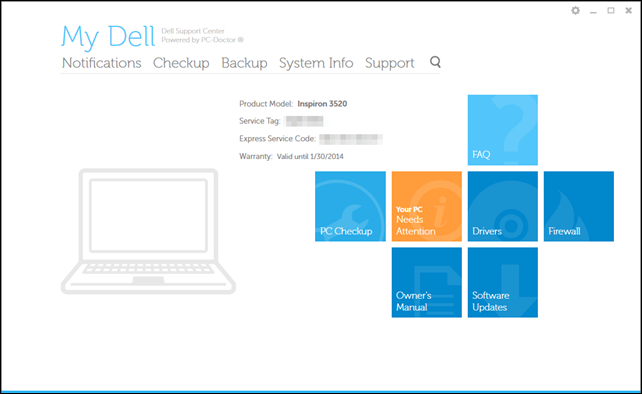
In Lavie’s Dell laptop’s instance, it is included under the Dell Support Center PC Checkup group.

So I did what any normal IT guy does when handed a regularly freezing laptop by their spouse.

I first launched the app.

b20s3be3.qss

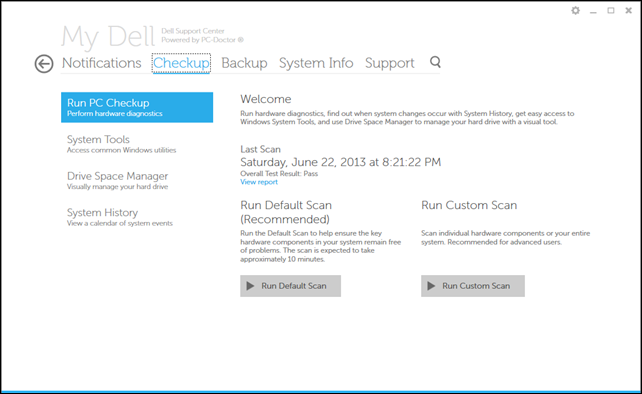
Dove into it.

qizgt2ri.1b0

Confirmed it had some extra features that looked useful enough to keep around, rather than uninstalling…

bnbv5gss.bbs

And planned to tell it to disable the regular scheduled hardware scans.

But there weren’t any scheduled.  Hmm.

efgr0552.iz1

So then I did what any sysadmin IT guy does when handed a regularly freezing laptop by their spouse, fire up Auto Runs, find the auto-start entries for PC-Doctor and disable them.

2hctazjq.jci

Done.  I handed the laptop back to Lavie, grinned with that practiced humble-IT-guy smirk we often have after solving an issue, and went back to whatever it was I was doing.

So I was a hero and Lavie gave her prince a kiss.

Turns out that was a froggy-prince she kissed.

The very next day, Lavie was back with her laptop fussing again about it being locked.

So, that wasn’t quite the brilliant solution I had hoped; to preserve the Dell Support Center but disarm the PC-Doctor Module.

Now it was gloves-off time, my clever IT guy skills were being besmirched by PC-Doctor, and the audacity to do so in front of my precious end-user #1.

I went directly back to the Reliability Monitor after another hard-boot to get it going again.

The same PC-Doctor Module error was there again.

I had learned something very important in my first failure, that something else was calling it to launch, on a regular basis, almost as if…it…were…scheduled?!!!

Yep.

This time I pulled up Task Scheduler and very, very, very carefully picked my way though all the entries.

There it was, the missing bit.

Both “PCDEventLauncher” and “PCDOctorBackgroundMonitorTask” were showing disabled, from my previous Auto Runs work. But I missed one non-PC-Doctor labeled item:

l2xdoswm.r4t

I quickly set that one to “Disabled” as well.

nzbbmy1n.fgn

Since catching this one additional item, no more lockups since.

wec0l5tb.c2s

YMMV with this fix, but I feel confident this resulted in a balanced solution for us; the Dell Support software remains installed and available if ever needed on the system but the utility process causing the lockups has been neutralized.

I wish I could provide some “root-cause” analysis on why that module caused Lavie’s laptop to freeze each and every time. Since it was like clock-work, I suppose I could run a Windows Performance Monitor, Windows Performance Analyzer (especially the new Windows 8 version), or maybe even a simple Process Monitor trace session just before the time it always locks up to see what was causing problem; a resource issue? conflict with another running process? missing file?  Maybe simply re-installing the Dell Support Center to a newer version would resolve it. I’m not bothering right now.

In this case, end-user #1 was delighted to have uninterrupted fan-fiction reading sessions restored and I was happy Lavie was happy. And she loves her new Windows 8 Dell laptop again. We call that a win/win.

If you have Windows 7/8 system, don’t forget about the Reliability Monitor for gathering intel in troubleshooting. It’s super-useful.

If you need to access it directly, you can A) add a Reliability Monitor Shortcut (Windows 7 Help Forums) or B) just start typing “reliability history” in the “search all programs and files” box under your Start menu.

I hope this helps.

Cheers,

--Claus Valca

Read More
Posted in troubleshooting, Windows 8 | No comments

Sunday, June 30, 2013

Microsoft’s EMET v 4.0 Released … in case you missed it

Posted on 3:01 PM by Unknown

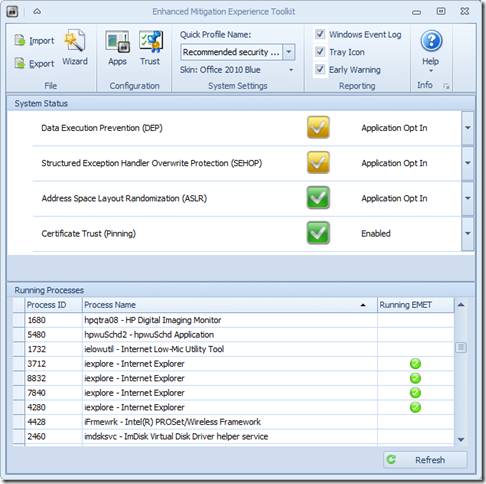
Microsoft’s Enhanced Mitigation Experience Toolkit 4.0 - EMET - just got released about two weeks ago.

It really hasn’t made that big a splash in the security news pond; maybe getting lost in all the waves from coverage on our domestic network digital data gathering, leaks in the SS Minnow, and that whole Facebook Shadow Profile data collection fiasco.

Oh, then there is that whole breaking story in the food world that has everyone shocked and a-twitter--How Cronuts Are Driving New York City Crazy.

So it’s not surprising that news of the release of a Windows-specific security tool to prevent advanced malware attacks got little notice.

So here you go.  Little rock toss into a big pond.

a0n12tap.xsg

I’ve got it running on all our home systems as well as all my Windows virtual machines. I’ve seen no performance issues at all and it is super-quiet; no chatter at all. Accordingly, I would recommend it to all my friends/family-members, especially those who insist on using Internet Explorer and do a lot of work in MS Office applications and documents. It is not a solution to replace any existing anti-virus/anti-malware security software you have, but rather it works to supplement and harden it.  I’m running it aside Microsoft Security Essentials (Win 7 systems), Windows Defender (Win 8 systems), and Bitdefender Antivirus Free (Win 8 systems). It works great.

  • Nuclear Scientists, Pandas and EMET Keeping Me Honest - SANS ISC Diary - great post from Johannes Ullrich detailing just how deployment and use of EMET (v3.5) could have prevented a recent “watering-hole” attack. It’s a great introduction on how the EMET software works. Version 4.0 is better.
  • EMET 4.0 is now available for download - SANS ISC Diary notice/followup.
  • EMET 4.0 now available for download - Microsoft Security Research & Defense blog. Great overview of the tool and all the new features and capabilities. Read this next before considering deployment
  • Enhanced Mitigation Experience Toolkit 4.0 - Official Microsoft Download Center source. It runs on everything from XP SP3 to Windows 8 platforms, as well as all related Server OS’s as well.
  • Enhanced Mitigation Experience Toolkit 4.0 - bink.nu - quick recap summary scraped from the product details of the official download site.
  • Microsoft’s EMET 4 adds even more malware-blocking power - Betanews overview of the tool.
  • Microsoft releases Enhanced Mitigation Experience Toolkit 4.0 - Help Net Security announcement of the tool.
  • Enhanced Mitigation Experience Toolkit 4.0 final is out - Ghacks.net - Nice review and overview of the EMET 4.0 features.

Not impressed enough yet to download?

Well, did I mention it has “skins” so you can change the theme to some pretty snazzy color schemes?

Seriously, if you spend any time on the Web (particularly in IE) and run a Windows system, then you really should consider deployment of this tool. Just take the default configuration settings to get started, then you can tweak away and add additional protection coverage after you read the manual.

Cheers!

Claus Valca.

Read More
Posted in anti-virus software, browsers, Internet Explorer, malware tools, Microsoft, networking, security, viruses, Windows 7, Windows 8, XP | No comments

Mostly Wi-Fi and Network Security: Linkfest

Posted on 1:47 PM by Unknown

Ok. In the time it took me to work on that last post (mostly), I was able to cycle some laundry through the machines AND get my VMWare Player build of Windows 8.1 up and running.

It tossed me a few curves, but nothing that big a deal.

bmilmnfz.xol

I tried the new and updated “Windows Start button” all for five minutes before ditching it for the free IOBit StartMenu8. Went on with no issues. Tossed on Google Chrome (Dev), FreeCommanderXE beta, dropped some snazzy wallpapers on to cycle through, added Process Explorer to run in the system tray, and while I kept Windows Defender this time, I supplemented it with Microsoft's EMET 4.0.

That’s it for now, more tweaking and testing and twisting it in the weeks to come. Expect some follow-up Windows 8/8.1 posts as well around here.

So now let’s turn to the world of Wi-Fi (in)Secuirty and networking in this GSD Link Fest edition:

Wi-Fi, Web, and Networking Security Headaches Galore - Pineapple Flavored!

  • Your Mac, iPhone or iPad may have left the Apple store with a serious security risk - Troy Hunt’s blog
  • iPhones can auto-connect to rogue Wi-Fi networks, researchers warn - Ars Technica
  • Pineapple Surprise! Mixing trusting devices with sneaky Wi-Fi at #wdc13 - Troy Hunt’s blog
  • The beginners guide to breaking website security with nothing more than a Pineapple - Troy Hunt’s blog
  • Your login form posts to HTTPS, but you blew it when you loaded it over HTTP - Troy Hunt’s blog
  • Understanding the risk of mixed content warnings - Troy Hunt’s blog
  • iOS Personal Hotspot passwords vulnerable to brute force attacks - iMore.com
  • VIDEO: Targeted Attacks Video Series from TechNet - Kurt Shintaku's Blog. From that post:

      We have a new security video resource called the Targeted Attacks Video Series  on Advanced Persistent Threats (APTs), or what we at Microsoft call Targeted Attacks by Determined Human Adversaries. These five short informational videos summarizes three security whitepapers, Determined Adversaries and Targeted Attacks, Mitigating Pass-the-Hash (PtH) Attacks and Other Credential Theft Techniques, and Best Practices for Securing Active Directory. The five short videos are:

      1. Introduction to Determined Adversaries and Targeted Attacks: Tim Rains, Director, Microsoft Trustworthy Computing, provides background information on these types of attacks and set the context for the rest of the video series.
      2. Mitigating Pass-the-Hash Attacks: Patrick Jungles, Security Program Manager, Trustworthy Computing, explains what a Pass-the-Hash attack is and some tested mitigations to help manage the risk associated with credential theft attacks.
      3. Anatomy of a Cyber-attack Part 1: Sean Finnegan, CTO of the Microsoft Consulting Services Cybersecurity Practice, walks through a typical targeted attack, step by step, describing how attackers perpetrate these attacks.
      4. Anatomy of a Cyber-attack Part 2: Sean Finnegan finishes his briefing on how determined adversaries commit targeted attacks.
      5. Importance of Securing Active Directory: Bret Arsenault, Microsoft CISO, discusses the importance of protecting your Active Directory in the context of target attacks.

All great videos to watch on your own or with your IT team for a mini training & discussion session.

Networking Tools

There have been a number of nice networking tool updates recently:

  • SoftPerfect Network Scanner: fast and free network scanner - Now updated to version 5.4.11 (May 08 2013)
  • DNSQuerySniffer - DNS queries sniffer - New free app from Nir Sofer’s Nirsoft factory that shows the DNS queries sent by your system (x32/x64 bit flavors are available).
  • Wireshark - Now at stable release version 1.10.0.  For more info see these 1.10.0 Release Notes
  • toolsmith: Visual Malware Analysis with ProcDOT - HolisticInfoSec - I’m still getting my courage up to start working with this gem that mind-melds Process Monitor data with GraphViz. Super cool.
  • TightVNC 2.7.7 is now out and released. download
  • Deep Dive Packet Analysis (by Hansang Bae) - Sharkfest 2013 session- Video presentation on using and analyzing challenging network issues.

Microsoft Message Analyzer Beta 3 Released!

The next beta version of Microsoft’s answer to Wireshark is out.

  • Microsoft Message Analyzer Beta 3 is released (Build 6211)! - MessageAnalyzer blog

It is a far and different animal from the old MS Network Monitor platform and takes a lot of work getting used to.

Tip: you have to be registered on the Microsoft Connect site to get the non-public download. I have been from some time but when I tried to find the actual MA Beta 3 bits for download on the project page, I couldn’t find them. I looked, waited a few days, looked some more, nada.

Finally I backed out a bit and found a “new” (3rd) “Message Analyzer, Network Monitor and Protocol Test Suites” product program listed that I wasn’t joined to. I joined it and there were the bits. Ok…I guess that was my bad by assuming that just because I had joined a particular Product, that other Programs could be added without me realizing it. Oh well.

Note: I believe it requires a Windows 7/8 platform as well as some .NET packages. It definitely doesn’t seem to be supported on XP. Come-on team, time to upgrade that OS!

Wi-Fi Tools and Updates

  • Wi-Fi Inspector - Xirrus - Neat and techy-looking free Wi-Fi signal scanner. Now updated to version 1.2.1.4. I keep this on handy
  • inSSIDer for Home - MetaGeek - This seriously-updated edition of inSSIDer really rocks! This is the free version for home users but they also offer a super-cool Office version that has some additional graphing and reporting features, Finally they also offer some super-beefy enterprise-level Wi-Fi assessment and troubleshooting software tools. Neat stuff here.
  • HeatMapper - Ekahau’s free Wi-Fi coverage mapping tool for homes and small offices. Simple registration required for the free download. Current version 1.1.4 (March 03 2012) with Win8 Consumer preview support.
  • Cisco Meraki - WiFi Mapper - Cisco product that can run in a browser session via a Java application. Nice basic review here: Wi-Fi Testing and Mapping Apps for Techs via Technibble
  • WifiInfoView - free NirSoft tool to capture information on Wi-Fi networks that are broadcasting in your vicinity. This version works on Windows Vista - Windows 7/8. Not XP, however.
  • WirelessNetView - free NirSoft tool that also captures broadcasting Wi-Fi network details. This one does run on XP.
  • Wireless Network Watcher - free NirSoft tool that shows who is connected to your wireless network.
  • SoftPerfect WiFi Guard - free app that also shows who is on your wireless network, but has an added feature of alerting you if a new device joins that is unknown

Stay safe and remain watchful!

Claus Valca

Read More
Posted in Link Fest, networking, software, utilities, virtualization, Windows 8 | No comments

Sunday, April 28, 2013

News around the Water Cooler for Sysadmins

Posted on 1:03 PM by Unknown

wkkl3lgn.m5w

via Wikimedia Commons via Zach Tirrell under CC 2.0 attribution

And here is some Sysadmin news and tips now collected over the past few weeks.

Sorry, but someone took all the paper cone water cups off the water cooler and is doling them out like party-hats so you need to find your own glass this week.

  • NEWS: It’s Patch Tuesday. (4/9/13) - Kurt Shintaku's Blog
  • INFO: Reference Library for Microsoft Downloadable eBooks - Kurt Shintaku's Blog
  • Copy in-use files from the command line - TinyApps blog. Lots and lots of great freeware and open-source tools!
  • Error installing Windows 7 - TinyApps blog…when using a Zalman (iodd-like) USB device…
  • Recent additions to File/Backup - TinyApps blog - some nice tiny tools for backup/sync operations.
  • FREE: WMI Administrative Tools - WMI Object Browser and WMI CIM Studio - 4sysops
  • FREE: SAPIEN Technologies WMI Explorer - 4sysops
  • FREE: MoW PowerShell WMI Browser - 4sysops
  • Antivirus programs tested for Windows 8 - The H Security
  • New on modern.IE: Free VM Downloads, Windows 8 QuickStart Kits, Enhanced Code-Scanning Tools, and More - IEBlog
  • Get the best RDP 8.0 experience when connecting to Windows 7: What you need to know - Remote Desktop Services (Terminal Services) Team Blog
  • Solving Windows Update error 80070003 - Ed Bott
  • Blue's Clues: Enabling Kiosk Mode - Within Windows
  • Blue’s Clues: Kiosk Mode - Windows 8 content from Paul Thurrott's SuperSite for Windows
  • Windows To Go – Some tips and an odd boot problem (error code: 0xc000000e) - 4sysops
  • Howto: Add a Digital Signature to a PDF File – Free Software - Didier Stevens

Cheers.

--Claus V.

Read More
Posted in Active Directory, Link Fest, Microsoft, troubleshooting, utilities, Windows 8 | No comments

Sunday, March 17, 2013

God Made a SysAdmin…and a linkfest to feed them

Posted on 10:19 PM by Unknown

One of the best 2013 ads I saw so far this year was this one during a small little scratch football game.

It worked for me on several levels.

However, soon a "parody” of sorts soon followed. First the words were developed by Chester Gifford and -- inspired - Matt Simmons of the great Standalone Sysadmin blog tossed together some images, and finally Drew Stemen contributed the voice-over.  The whole story is here; God Made a SysAdmin | Standalone Sysadmin

Full text at website God Made a Sysadmin

Brilliant!  I want to personally thank all those who appeared in the piece as well as the creative work and toil from Chester, Matt, and Drew. Who knows how much extra un-recorded time went into this project’s success? Well, a sysadmin would, naturally!

More Tips & Rumors

  • Reset Your Forgotten Windows Login Password The Easy Way - Addictive Tips
  • How to reset a Windows 8 password - 4sysops
  • How to reset a Microsoft account password (connected account) - 4sysops
  • Offline enable the Windows 8 built-in administrator account - 4sysops
  • Triple Your Speed: How to Install an mSATA SSD Boot Drive in Your Laptop = LaptopMag blog
  • Seagate is done making 7200rpm 2.5-inch pure hard disk drives - Ars Technica

Networking News

  • Chrome's Developer Tools for HTML Analysis - LoveMyTool blog by Tony Fortunato
  • Network Capture is Dead! - MessageAnalyzer - This post highlights how MessageAnalyzer (the next generation Microsoft capture tool evolving from Network Monitor) doesn’t just focus captures on network “traffic” but also can monitor and analyze Event Tracing for Windows data as well. Pretty cool.
  • Sniffing Traffic on the Wire with a Hardware Tap - Open Security Research blog
  • Wireshark Security Updates -ISC Diary post
  • Wireshark · Download - Versions 1.8.6 stable, 1.6.14 (old stable), and 1.9.1 (Dev release)

Toys and Wonders

  • Kali Linux - New Sec/PenTest distro built on the back of BackTrack Linux and developed specifically for enterprise environments supporting penetration testing and security auditing. According to the distro documentation, it has over 300 tools baked in, will be free, sports many wireless devices, and has ARMEL/ARMHF support for “non-standard” hardware platforms such as Raspberry Pi, a VMWare Image, and the Samsung Chromebook. Pretty snazzy!
    • Kali Linux - Downloads
    • Kali Linux - Documentation
    • Kali Linux arrives as enterprise-ready version of BackTrack - The H Security: News and Features
    • Kali Linux Cracks Passwords and Finds Security Exploits on the Enterprise Level - Life Hacker
  • Piriform pushes out minor update for CCleaner, version 4 coming soon -  BetaNews
    • CCleaner v3.28 - Piriform News
  • Easily Download & Launch Sysinternals & Nirsoft Utilities With WSCC - Addictive Tips. Previously mentioned back in this Windows System Control Center (WSCC): Awesome Cool! GSD post.
  • VirtualBox update fixes problems, makes the virtualization tool more stable - BetaNews - Yeah, go get your update… Downloads - Oracle VM Virtualbox
    • Changelog – Version 4.2.10 - Oracle VM VirtualBox
  • Upgrading Linux Guests - The Fat Bloke Sings blog
  • Alternative Flash Player Auto-Updater - pXc-coding - now at version 1.1.0.2 - Works on XP,Vista. Win 7, Win 8, can work without user interaction (handy); of course Flash does have the option imbedded to auto-update. As I understand it, Flash auto-checks every seven days while this app can check for Flash updates at every reboot (or every two hours) if you are patch twitchy.
  • Uninstall Flash Player - Windows - Adobe - Can’t get Flash out of your Windows system using Add/Remove/Programs & Features? Or want to roll back to and older version and Flash won’t let you? Use the official Flash Uninstall utility to remove all traces.
  • JavaRa - SingularLabs - Fantastic all-in-one utility to update Java runtimes, remove Java runtimes, and clean up logs/temp-files used by Java runtimes.
  • USB Image Tool 1.61 - alex's coding playground - Fast arriving update to fix a bug, use user-defined date/time formats for file name suggestions, and once an image restore is completed, automatically rescans for all devices to be detected.
  • UEFI MULTI 72 - reboot.pro - Project to make a multi-boot USB-harddisk to boot systems with BIOS or UEFI firmware.
  • IntegrateDrv - reboot.pro - Project for utility tool to integrate mass-storage or PNP drivers into Windows setup. This is a little bit different than the WinPE/DISM driver integration tools such as DISM GUI - Download: DISM GUI 3.1.1, and Je Jin's DISM Tool, and GUI Dism ELDI v3.0.2. I covered use of those in my GSD post Scratching at a SCSI Drive Itch - Part II - WinPE Redux .

Cheers and may you have a marvelous work-week!

Claus Valca

Read More
Posted in boot-cd's, hacks, hardware, Link Fest, Linux, Microsoft, networking, security, troubleshooting, tutorials, utilities, virtualization, Windows 7, Windows 8 | No comments

Advanced Tips for Windows Defender with Windows 8

Posted on 8:10 PM by Unknown

My primary recommendation for home users (friends, family, etc.) for a first-line Windows anti-virus/anti-malware protection remains Microsoft Security Essentials from Microsoft.

It is resource light - especially important on older Windows OS systems - and does an acceptable level of protection for average home users.  It gets pretty consistent high marks in most AV testing. Not the highest, but not the lowest.

And it isn’t scary with it’s presentation of threat findings.

So it goes on our own Windows 7 systems.

When Lavie upgraded to a Windows 8 system, Microsoft Security Essentials couldn’t be installed as in it’s wisdom, Microsoft bundles a MSSE version of Windows Defender on the system instead.  That’s just the way it is.  While essentially the same product, it doesn’t have some of the more granular control in setting scheduled scans, DAT updates, or on-demand scans.

So if you have Windows 8, and are using the stock Windows Defender as your AV/AM solution, then you might find the following “power tips” to using/tweaking Windows Defender helpful.

  • Configure Windows Defender in Windows 8 - Marqus Saluste - WinHelp - Particularly helpful was the section “Advanced Tweaking - Scheduling Windows Defender Scans and Updates in Windows 8”
  • Windows Defender on-demand scan in Windows 8 - Marqus Saluste - WinHelp - Particularly helpful was the section “Advanced Tweaking - Scheduling Windows Defender Scans and Updates in Windows 8”
  • Add Scan With Windows Defender To Context Menu In Windows 8 - The Windows Club

If you are looking for some extra sauce for your Windows 8 system, you might consider checking out Bitdefender Antivirus Free.

I am using it on my virtualized Windows 8 system and finding it just as simple to use and run as Microsoft Security Essentials…with the added benefit of a "web-based” console view to manage the AV system. If you install it on more than one system, then you can manage each system in the same console.  Handy.

Cheers.

--Claus V.

Read More
Posted in anti-virus software, malware tools, Microsoft, security, Windows 8 | No comments
Older Posts Home
Subscribe to: Posts (Atom)

Popular Posts

  • New Year’s Day - First Post 2011
    Same day I came out with my first post after a long drought, I fell upon this article Blogging Seems To Have Peaked, Says Pew Report over a...
  • Oscar watch Linkpost
    Alvis and Lavie are watching the Oscars tonight and I’m along for the ride. I wasn’t able to come even close to getting out some of the pos...
  • Finally! Time to Post! New material list
    After a recent text from my bro reminding me it has been since March since I’ve done a blog post, I was finally able to clear the schedule a...
  • Ubuntu 13.10 Upgrade - Lessons Learned & VIDMA utility found
    A few weeks ago a new release of Ubuntu came out. Naturally that meant it was update time! I have been getting pretty good at this now so ...
  • iodd : Multi-boot madness!
    Like many computer technicians and responders, I seem to always have at hand a collection of bootable media; CD’s, DVD’s, USB-HDD’s, flash m...
  • Network Capture Tools and Utilities
    At a conference this week, we had quite a section regarding network captures. The instructor was going on about how you can try to sort ou...
  • It just has to be bigger on the inside…
      Last Christmas, Lavie gifted me with a cute little Jawbone JAMBOX unit. I thought it was pretty cool. It uses a Bluetooth connection t...
  • Mostly Minor Network Notes
    Here are some minor tweaks and features, mostly of a network nature. Manual Uninstall of the Cisco VPN Client « Mobile Expertise -- becaus...
  • Windows Live Mail error 0x80041161
    Dad is working with his father-in-law who has an issue with his Suddenlink web-mail-based “forwarding” handling of messages. Seems that (an...
  • FireCAT 1.5 “Plus” Add-On Collection
    In yesterday’s GSD post I noted the following: Both of these tools brought be back to the excellent FireCAT 1.5 collection of Firefox...

Categories

  • Active Directory
  • anti-virus software
  • Apple
  • architecture
  • art
  • AVG
  • Blogger
  • blogging
  • books
  • boot-cd's
  • browsers
  • cars
  • cell-phones
  • cheat sheets
  • Chrome/Chromium
  • command-line interface
  • cooking
  • crafts
  • crazy
  • curmudgeon
  • DHC
  • Dr. Who
  • E-P1
  • Education
  • family
  • Firefox
  • firewalls
  • For the Gentleman
  • forensics
  • Gmail
  • Google
  • graphics
  • hacks
  • hardware
  • humor
  • hurricanes
  • imagex
  • Internet Explorer
  • iOS
  • iPhone
  • iPod
  • iTunes
  • Kindle
  • Learning
  • Link Fest
  • Linux
  • malware tools
  • Microsoft
  • movies
  • music
  • networking
  • NewsFox
  • NFAT
  • Nook
  • Opera
  • organization
  • PDF's
  • photography
  • politics
  • PowerShell
  • recipes
  • Remote Support
  • RSS
  • science
  • Scripting
  • search engines
  • security
  • Shuttle SFF
  • software
  • Texana
  • Thunderbird
  • troubleshooting
  • TrueCrypt
  • tutorials
  • utilities
  • VBscript
  • video
  • Virtual PC
  • virtualization
  • viruses
  • Vista
  • Vista mods
  • wallpapers
  • Win FE
  • Win PE
  • Win RE
  • Windows 7
  • Windows 8
  • Windows Home Server
  • Windows Live Writer
  • Windows Phone
  • writing
  • XP
  • XP mods
  • Xplico

Blog Archive

  • ▼  2013 (83)
    • ▼  November (8)
      • Ubuntu 13.10 Upgrade - Lessons Learned & VIDMA uti...
      • ForSec Linkfest - 2013 DST Fallback Edition
      • CryptoLocker Ransomware Info & Free Prevention Sol...
      • Linkfest for the SysAdmins
      • Microsoft Security Essentials/Defender & PowerShell
      • Miscellaneous TrueCrypt linkage
      • PowerShell 4.0 and a tiny “gotcha”
      • New Software Updates + VMware Tools Update fix
    • ►  October (8)
    • ►  September (14)
    • ►  August (6)
    • ►  July (10)
    • ►  June (10)
    • ►  April (11)
    • ►  March (6)
    • ►  February (7)
    • ►  January (3)
  • ►  2012 (96)
    • ►  December (8)
    • ►  November (4)
    • ►  October (9)
    • ►  September (8)
    • ►  August (12)
    • ►  July (4)
    • ►  June (3)
    • ►  May (7)
    • ►  April (13)
    • ►  March (3)
    • ►  February (5)
    • ►  January (20)
  • ►  2011 (41)
    • ►  December (8)
    • ►  November (7)
    • ►  September (4)
    • ►  August (4)
    • ►  July (2)
    • ►  June (6)
    • ►  March (5)
    • ►  February (1)
    • ►  January (4)
  • ►  2010 (69)
    • ►  December (1)
    • ►  October (3)
    • ►  September (2)
    • ►  August (13)
    • ►  July (17)
    • ►  June (3)
    • ►  May (3)
    • ►  April (3)
    • ►  March (11)
    • ►  February (1)
    • ►  January (12)
  • ►  2009 (177)
    • ►  December (20)
    • ►  November (11)
    • ►  October (7)
    • ►  September (7)
    • ►  August (21)
    • ►  July (17)
    • ►  June (7)
    • ►  May (18)
    • ►  April (9)
    • ►  March (17)
    • ►  February (23)
    • ►  January (20)
  • ►  2008 (35)
    • ►  December (23)
    • ►  November (12)
Powered by Blogger.

About Me

Unknown
View my complete profile